WhatsApp to MT4 and MT5: Copy Group Signals in the Cloud
Plenty of signal providers skip Telegram and post in a WhatsApp group. Copying those calls by hand means watching your phone and typing every entry, stop loss and target into MetaTrader, and by then the price has often moved. Getting from WhatsApp to MT4 or MT5 without that typing takes two links. TPcopier joins your WhatsApp as a linked device, and your MetaTrader account runs on TPcopier's cloud server with the TPcopier EA inside it. A call posted in a group you switched on becomes an order at your broker.
How a WhatsApp call reaches MetaTrader
The first link is WhatsApp's own linked-device feature, the one WhatsApp Web uses. WhatsApp built it so one account can run on the phone and up to four other devices at once. Those devices keep working when the phone's battery is dead (Meta's engineering write-up explains the design). TPcopier reads only group messages through that link. Private chats never leave the WhatsApp worker, and TPcopier never posts anything.
The second link is the terminal. TPcopier starts MetaTrader 4 or 5 on its server with the EA loaded and turns Algo Trading on, so you never open MetaTrader yourself. The EA collects the signals meant for that account and opens the positions at your broker's own prices, then manages them until they close.
Nothing trades until you link a group to an account on the Bridge, and a signal only reaches the accounts you linked it to. The same set-up serves Telegram and Discord; the Telegram to MT4/MT5 cloud copier page covers those senders.
What gets read from a WhatsApp message
Every message in a switched-on group is read. Take a call like this one (an example, not a real signal):
XAUUSD SELL 4412 - 4416
SL 4424
TP1 4404
TP2 4396
TP3 4380
From that, TPcopier takes:
- The entry. One price is an entry; a range such as 4412 to 4416 is an entry zone, never an entry plus a target.
- The stop loss, straight from the message.
- Take profits, up to six. The EA opens one position per target, so three targets become three positions. Its settings allow TP1 to TP3 by default; TP4 to TP6 stay off until you switch them on.
- Market or pending, from the wording and the price.
- The symbol as your broker spells it. Common names are mapped automatically, so XAUUSD finds
GoldorXAUUSD.r. A name it can't match shows as a refusal in the account's Logs, and the symbol settings in EA settings fix it.
After a group's layout has been seen once, the next message in that shape is read from the learned layout. Only an unfamiliar layout goes to an AI. The order is set on the Rules tab: your block list first, then learned layouts, then the AI.
The block list and result posts
WhatsApp groups post results all day ("TP1 hit", "closed in profit"). A result post carries a symbol and a price just like a real call, so a careless reader could open a second trade from it. Any message holding a block-list word never goes to MetaTrader.
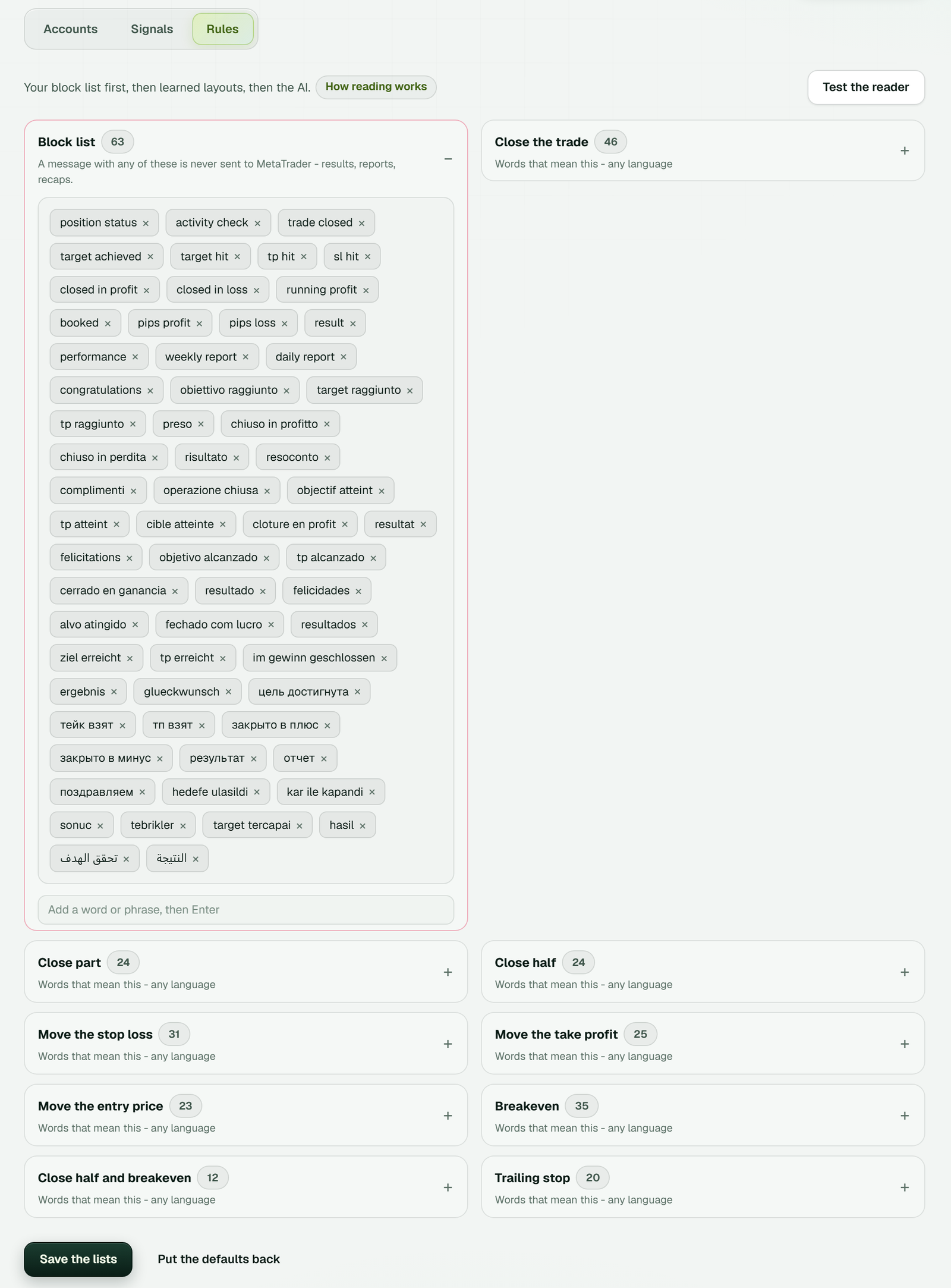 A post holding a block-list word such as "tp hit" or "closed in profit" never reaches MetaTrader. Test the reader sits at the top right.
Test the reader takes a pasted message and shows what TPcopier makes of it before a live call arrives.
Replies that manage the trade
Providers often manage a trade by replying to the original call: "move SL to entry", breakeven, close half, close all, or a new take profit. A reply acts on the signal it answers, so it touches only that signal's positions. When a group words these its own way, add its words to the matching list on the Rules tab. Each list takes words in any language.
Copy WhatsApp signals to MT4 or MT5, step by step
1. Make the bridge
Start the free trial, open Bridge and press Make a bridge. Pick WhatsApp as the sender and MetaTrader 5 or MetaTrader 4 as the receiver, then press Open the bridge at the bottom of the window.
 Binary brokers sit lower in the same window. WhatsApp to Quotex or Pocket Option is a bridge of its own.
The bridge's window has a Set-up list that ticks itself off, from Link WhatsApp to Test it on demo.
2. Link WhatsApp with one QR scan
Press Link WhatsApp and a QR code appears. On an Android phone, open WhatsApp, tap the three-dot menu, then Linked devices > Link a device, confirm it's you and scan the code. WhatsApp's help page on how to link a device has the iPhone steps. You type no WhatsApp password or code into TPcopier.
3. Switch on your signal groups
Your groups load after the scan. An empty list usually means WhatsApp is still syncing, so give it a minute and refresh. Switch on the groups whose calls you want copied.
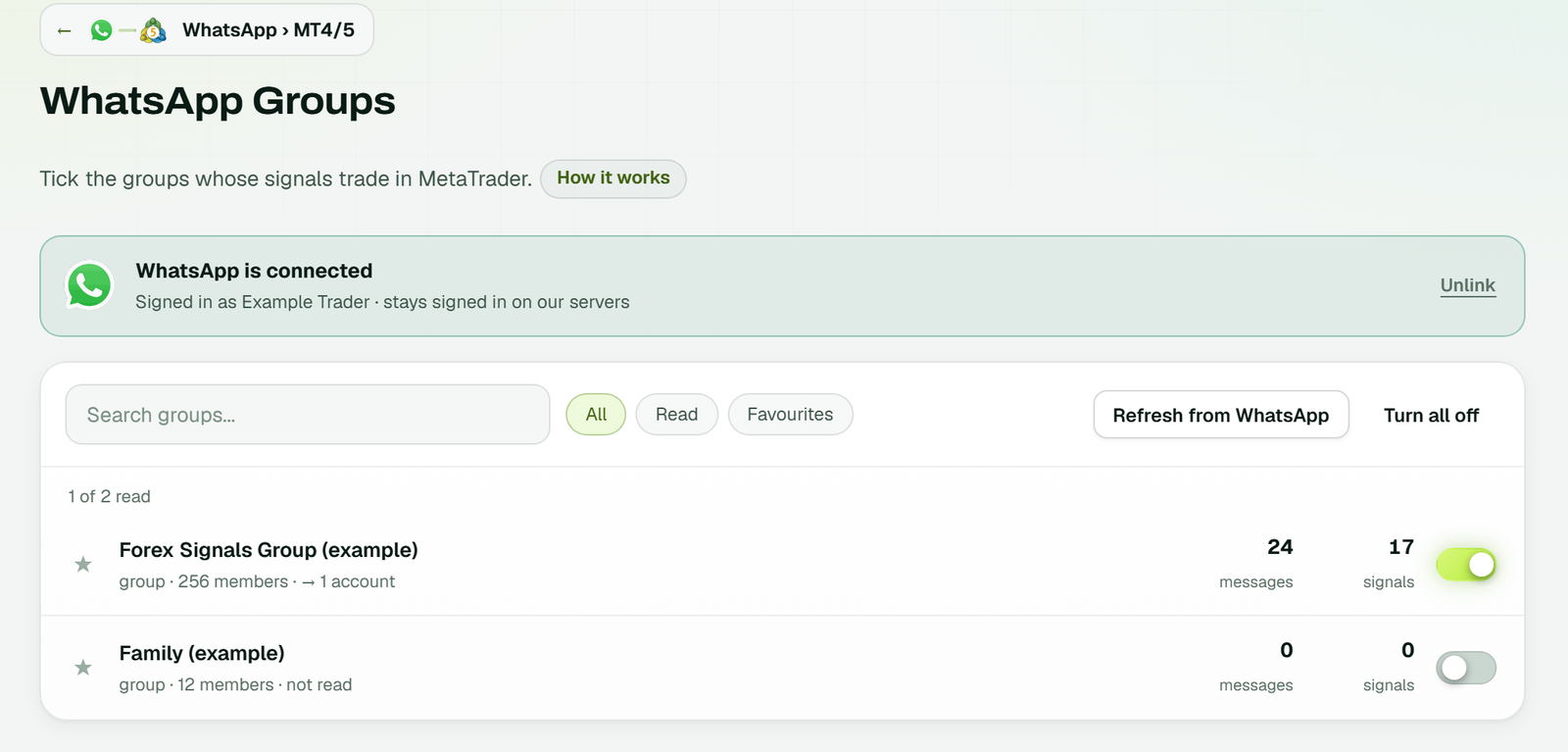 WhatsApp is connected as Example Trader. Forex Signals Group is on and goes to one account; Family is off and not read (example workspace).
4. Add your MetaTrader account
Press Add receiver in the bridge's window, or Add account on the MetaTrader 4/5 page. The Add a MetaTrader account window asks for the platform, a name you'll recognise (such as "Exness demo"), the broker, the account number and the trading password.
Pick the platform your broker account was opened on, because an MT4 login won't sign in to MetaTrader 5. If you haven't opened the account yet and are weighing the two, our MT4 vs MT5 comparison sets out what MetaQuotes documents for each.
Use the trading password, not the investor one: an investor (read-only) password can see the account but can't place a trade. The password is locked with the cloud server's own key when you press Add it, and the website can't read it back.
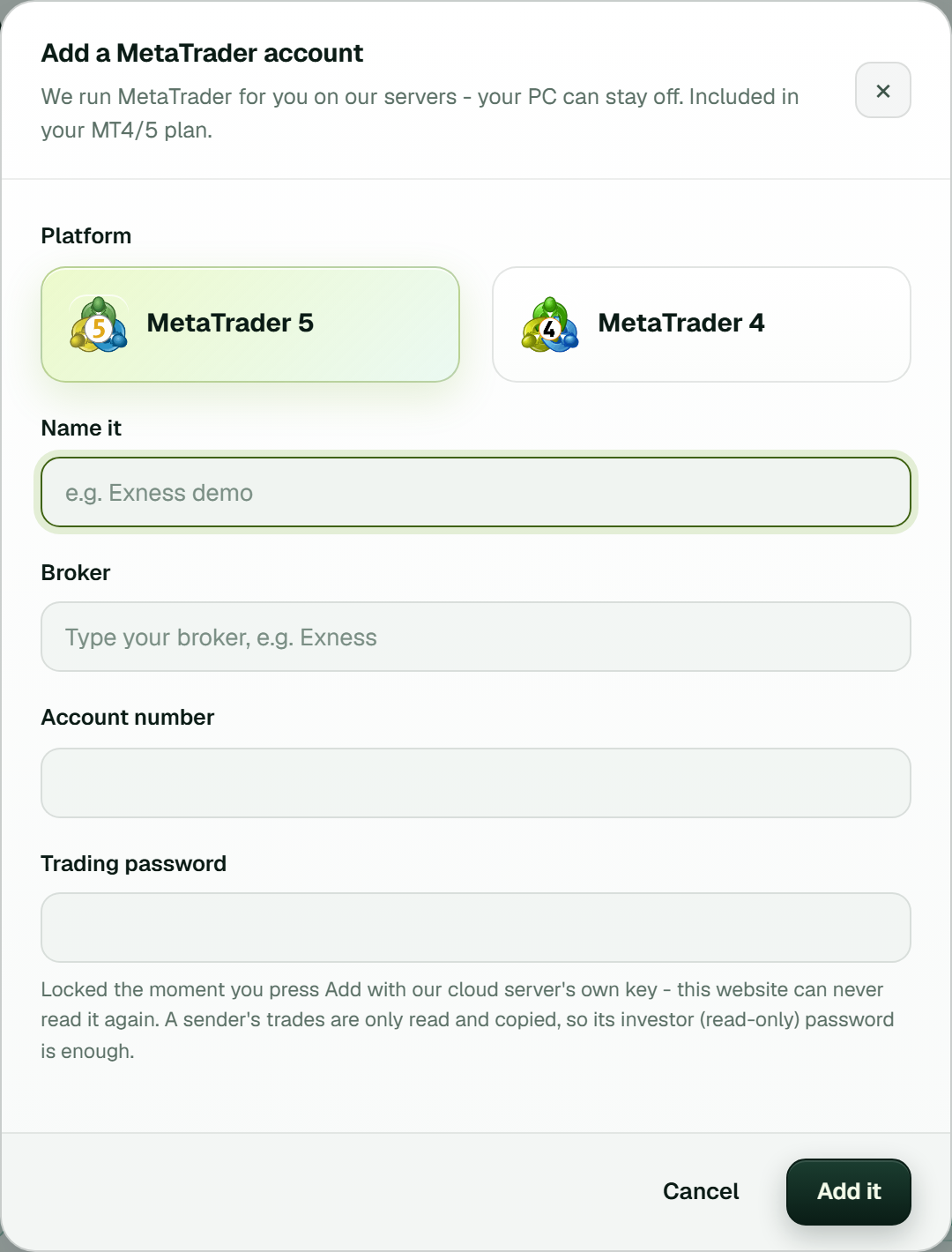 The line under the password field says it is locked with the cloud server's own key. Its note about an investor password is for a trade copier's sender, not for this receiver.
The card then shows Preparing the terminal, Signing in and Turning on Algo Trading, and lands on Running with Algo Trading on. On MT5, ask for a hedging account, since every take profit gets a position of its own.
5. Link the group to the account
With one group switched on, the new account is linked to it as it's made. With several, link each group on the left to the MetaTrader account on the right. The link gets a gear for its settings and the status Live, and the group's next call goes to that account.
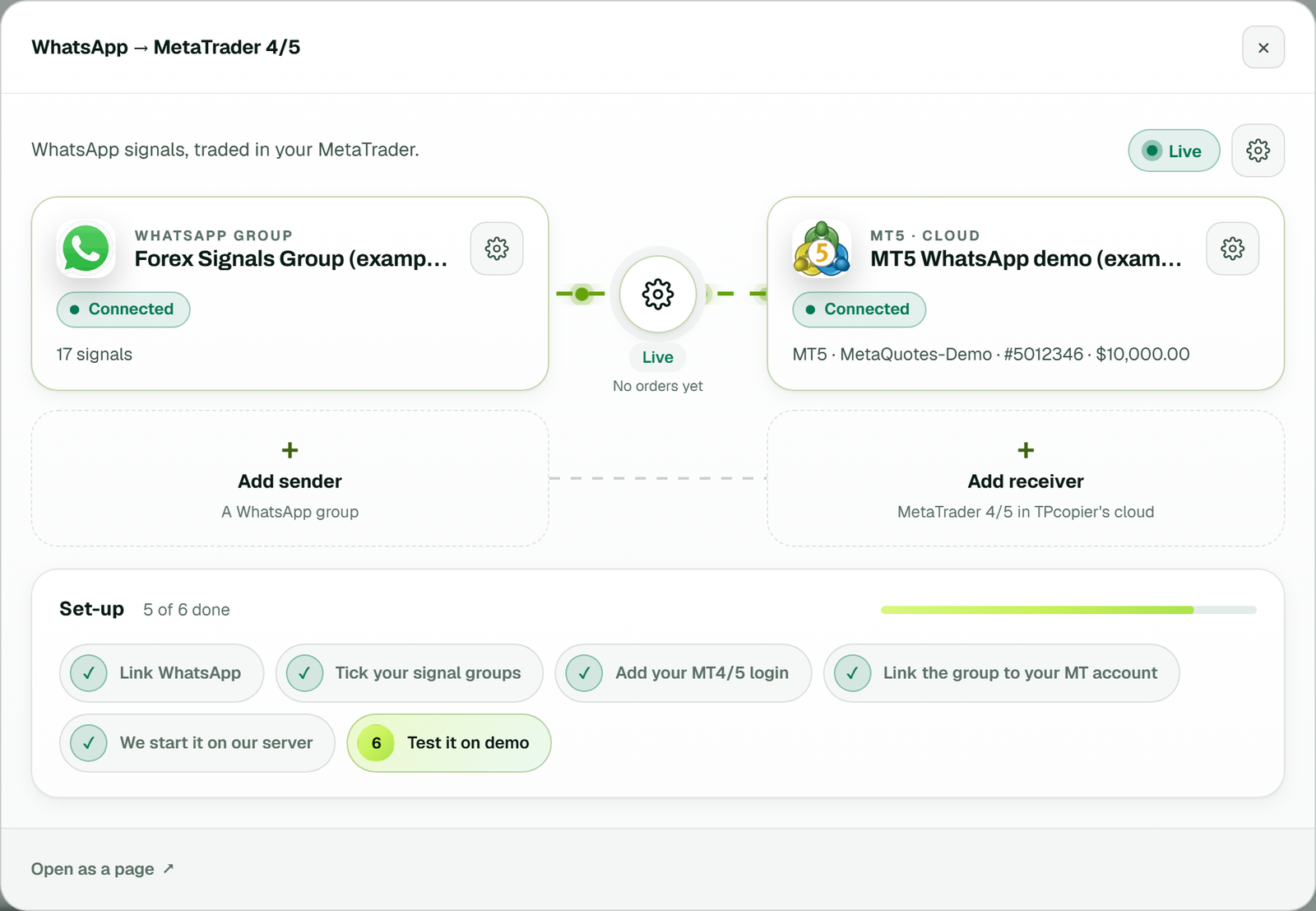 Only Test it on demo is left in the Set-up list, and the link reads No orders yet until the group's next call (example workspace).
6. Check the lot size, then watch a demo
Lot size and symbol names live in EA settings on the account's card, next to the account's limits. They are the EA's own inputs for that one account; read the lot size group first.
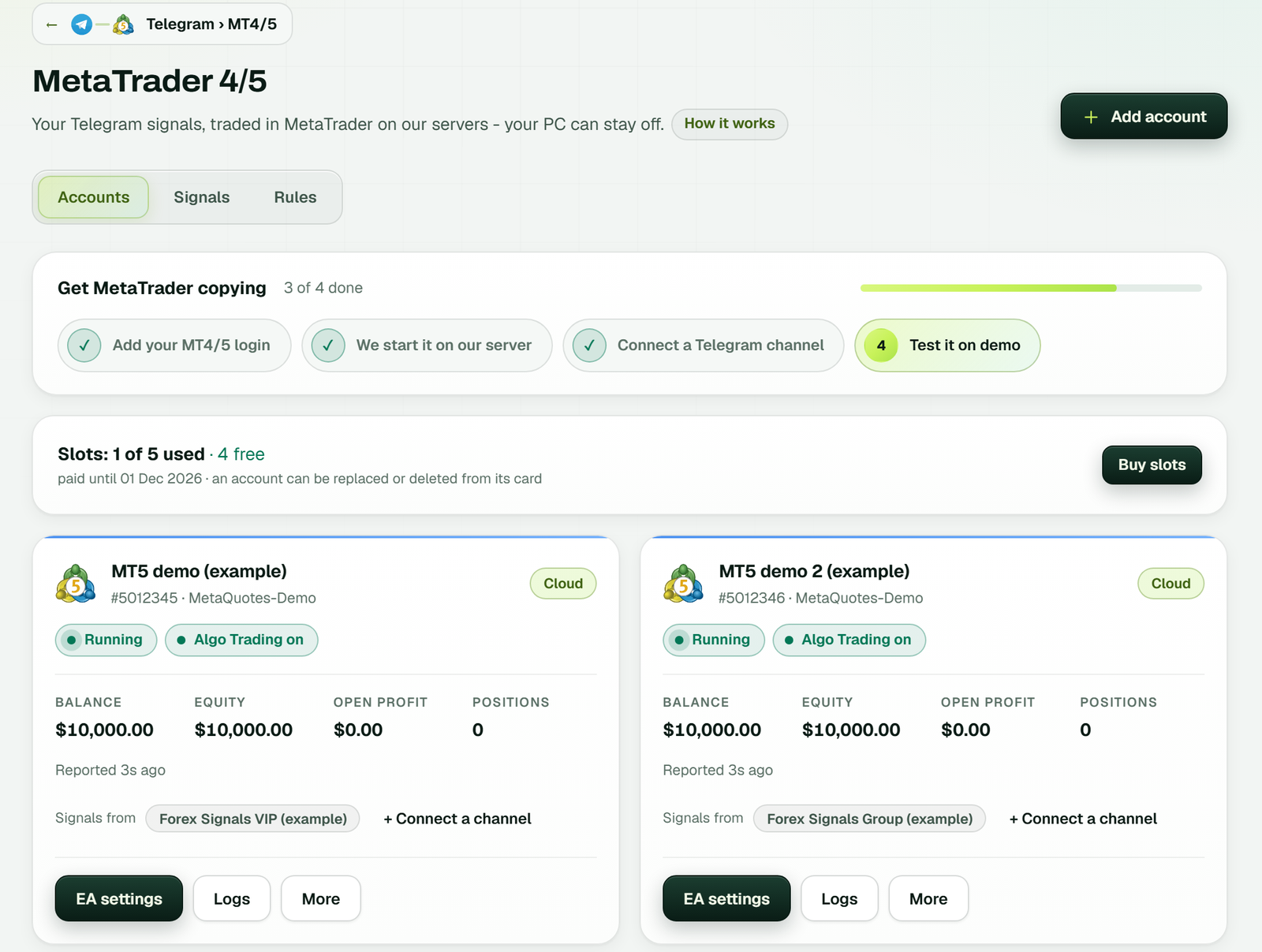 Opened here from a Telegram bridge; a WhatsApp bridge shows the same cards. The Slots line counts running accounts against your plan (example workspace).
The Signals tab lists every message read for MetaTrader and what it became: OPEN, SL MODIFY, CLOSE, IGNORED and so on, with what the EA did next. More on the card has Test connection, which checks the EA answers without trading, and Reconnect for a dropped account. Partial closes and the other settings worth checking work the same as for Telegram calls.
WhatsApp messages you may see, and the fix
The WhatsApp Groups page says in plain words when the link needs you:
| The page starts with | What to do |
|---|---|
| "WhatsApp ended this link (it was removed on the phone)" | Scan a new QR code under Linked devices |
| "WhatsApp is not connected yet" | Finish step 2, then refresh your groups |
| "Could not read your groups" | WhatsApp may still be syncing; wait a minute and refresh |
| "WhatsApp did not answer" | A short drop on WhatsApp's side; try again in a moment |
On the MetaTrader side, the account's Logs show what the cloud server reported, newest first: sign-in, Algo Trading, the EA, refusals and trades.
Limits worth knowing before real money follows a group
Linking a device to read groups is not an official WhatsApp route for trading software, though it's how copiers that read a group you've joined generally work. WhatsApp can end a linked device, and reading stops until you link it again.
Your phone can be off day to day, but open WhatsApp on it at least every two weeks. WhatsApp's page about linked devices says they're logged out when the primary phone goes unused for more than 14 days.
The copier trades what the group posts, right or wrong. Give one group a full week on a demo account and compare the Signals tab with the group's own posts. Every call should show as OPEN and every result post as IGNORED. A group that fails that check on demo will fail it with real money too. The red Stop Trading button in the top bar halts everything at once.
A WhatsApp group can also trade Quotex, Pocket Option and the other binary brokers through a separate bridge; WhatsApp to Quotex shows that set-up. For a provider on Discord, see copy Discord signals to MT4 and MT5.
What it costs
The cloud bridge from WhatsApp to MetaTrader 4/5 is billed monthly in USD. It costs $40 for 2 accounts, $60 for 3, $90 for 5, $150 for 10 and $200 for 15, with the cloud terminal included. Every running account takes one slot, so the $40 plan runs two. The free trial lasts 2 days on one bridge, allows up to 10 signals a day and needs no card. Plans are paid with Binance Pay or the TPcopier wallet, nothing renews by itself, and all payments are final with no refunds. Today's numbers are on the pricing page.
If you're comparing tools, the TelegramFXCopier comparison shows how this stacks up against a copier that needs its own MetaAPI plan.
FAQ
Is there a free or downloadable WhatsApp copier for MT5?
No copier here is free forever, though the cloud bridge has the 2-day trial above. For your own Windows PC or VPS there is a separate pay-once app, the WhatsApp → MT4/MT5 Copier on the Software page. It costs $150 once with 2 accounts and $30 for each more, after a free 2-day demo. That app runs MetaTrader on your machine, so the machine has to stay on.
Can I run it from an Android phone?
Yes. The TPcopier Android app is an APK from tpcopier.com/android and connects WhatsApp groups to MetaTrader too. The QR code has to be scanned by the phone that has WhatsApp. On a single phone, open the code on a second screen; the Android app guide covers that.
Do I still need a VPS?
Not for the cloud bridge, because the terminal TPcopier starts is the one that trades. Cloud vs VPS for a signal copier compares the costs if you already pay for one.
Can I copy one MT4 or MT5 account to another instead?
That is a different product, the MT4/MT5 cloud trade copier, at $6 a month per account. It copies an account's trades, not a group's messages.
Can I set it up from code?
Developers can create the cloud account and link the group through the MT4/MT5 signal copier API.
Sources
- WhatsApp multi-device: how linked devices work, Meta Engineering, 14 July 2021 (read 4 Nov 2026)
- How to link a device, WhatsApp Help Center (read 4 Nov 2026)
- About linked devices, WhatsApp Help Center (read 4 Nov 2026)
- TPcopier pricing and Software (read 5 Nov 2026)
Risk warning: trading forex and CFDs carries a high risk of losing money and is not suitable for everyone. The copier copies losing calls as well as winning ones. TPcopier is software, not trading advice, and nothing here is investment advice.