Connect TradingView to Delta Exchange by webhook.
Connect TradingView to Delta Exchange and your alerts trade on your own accounts. The TPcopier TradingView → Delta Exchange Copier is a Windows app. TradingView posts each alert to it by webhook, and the app places the order through Delta's API, with a stop loss and target on futures. There is no AI and no guessing: the alert's JSON says exactly what to do.
How TradingView to Delta Exchange works
When an alert fires, TradingView can send a request to any web address you give it. That request is a webhook, and its message can be JSON. The copier gives you the address and writes the message for you. Each time the alert fires, TradingView posts to it, and the app places the order on every Delta account you switched on, all at the same moment.
The app runs on a Windows 10 or 11 PC, or on a Windows VPS that stays on. It is not a cloud service. Your orders leave from that computer with your own API key, and the key never leaves it except to go to Delta. One alert runs at a time, in the order they came, so each alert waits for the one before it.
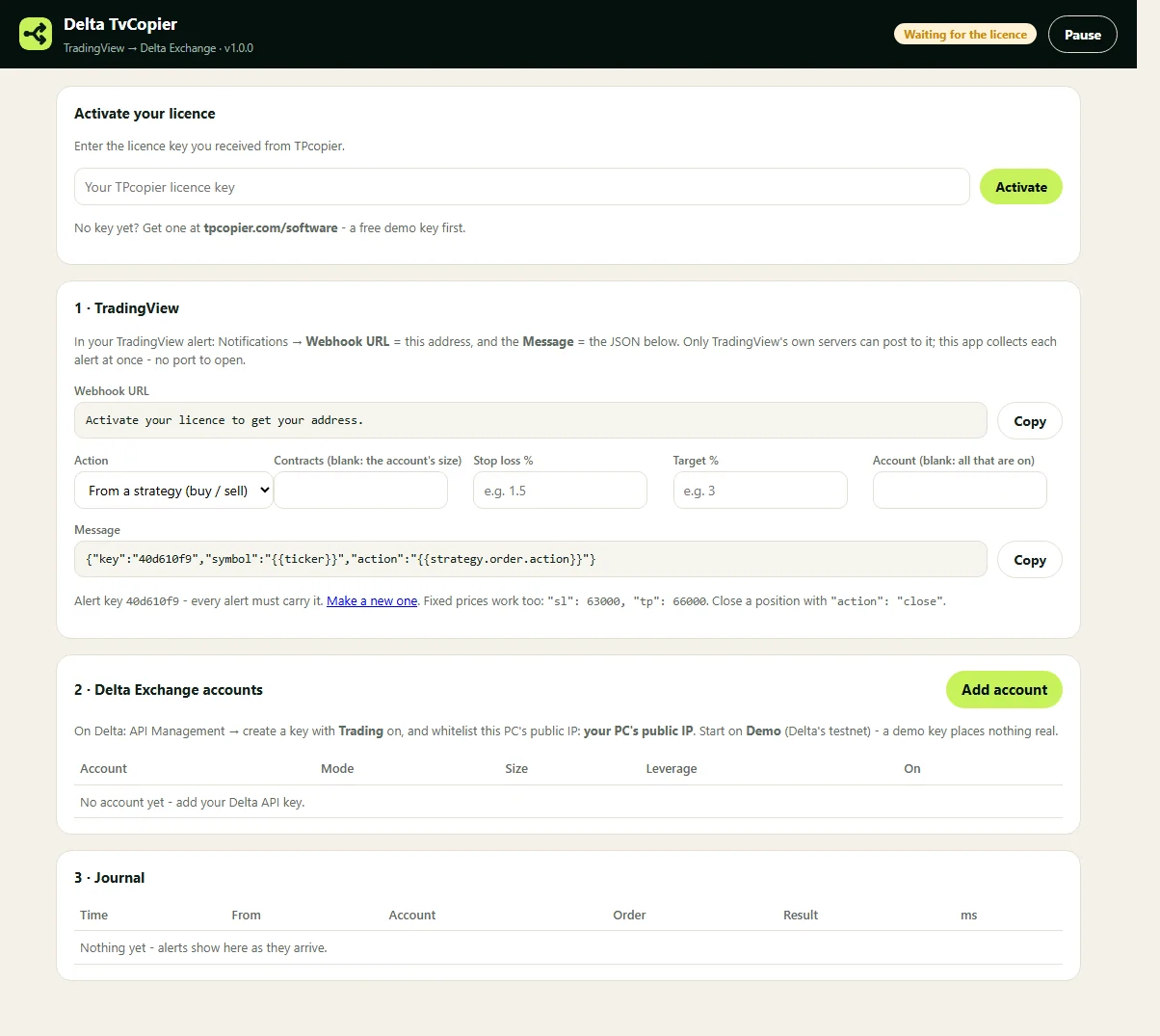
The TradingView to Delta Exchange app on first start, in version 1.0.0. Version 1.2.0 adds a direct webhook address above the one shown.
How to connect TradingView to Delta Exchange in five steps
- Get the app. Sign up on TPcopier.com, start the free demo on this app's card under Software, then download the app and activate the key.
- Make the Delta key. In Delta's API Management, create a key with the Trading permission. Add the public IP that the app shows to the key's whitelist.
- Add the account. Choose the market, Demo or Real, India or Global, the contracts per trade and the leverage. On Save, the app reads the balance as a check.
- Copy the address and the message. Its TradingView card holds your webhook address and builds the JSON from the choices you make.
- Create the alert. In TradingView, open the alert's Notifications, tick Webhook URL and paste the address. Then put the JSON in the Message box.
Once you connect TradingView to Delta Exchange, fire one alert at a demo account and read the journal. For each alert it shows the result, Delta's answer and how many milliseconds the order took. The install guide has every screen.
How the alert reaches your PC
The app shows one webhook address to connect TradingView to Delta Exchange.
- Straight to your PC. TradingView posts straight to your computer's public IP, on port 80 or 443, because TradingView sends webhooks to those two ports only. The PC needs a public IP and the port open. The app has an Allow in Windows Firewall button, and on a VPS you open the port in the provider's firewall too.
- A public IP. A home router or mobile line that shares one IP with other customers cannot be reached, whatever you open. Run the app on a Windows VPS instead.
The address takes alerts only from TradingView's own servers, which TradingView lists on its webhook help page. TradingView also stops waiting after three seconds. So the app answers it at once and places the order right after.
To check the address, open it in a browser on another device, such as a phone on mobile data. It answers ok and places nothing. If the address ever leaks, press Regenerate, and the old one stops working at once.
The Delta Exchange webhook message, field by field
The card writes this TradingView to Delta Exchange message for you. Still, it helps to know what each field does:
| Field | What it does |
|---|---|
key | Your alert key. Every alert must carry it. |
symbol | {{ticker}} works as it comes: DELTAIN:BTCUSD.P is the BTC perpetual. For options, MOVE and spot, name the coin, such as BTC. |
action | buy or long, sell or short, close or exit. Use closelong or closeshort to close one side. |
market | perp, options, move, spot or binary. Leave it out to use each account's own. |
qty | Contracts (spot: coins). Leave it out to use the account's size. |
sl, tp | Fixed prices for the stop loss and target. |
sl_pct, tp_pct | Percent from the mark price instead. |
option, strike, expiry | Options only: call or put, a strike or atm, and a date as YYYY-MM-DD. |
account | One account's name. Leave it out for every account that is on. |
The app reads JSON only. It refuses plain text, a missing symbol or a wrong key, and the journal says which one. On perpetual futures the stop loss and target ride on the order as a Delta bracket, and the stop triggers on the mark price.
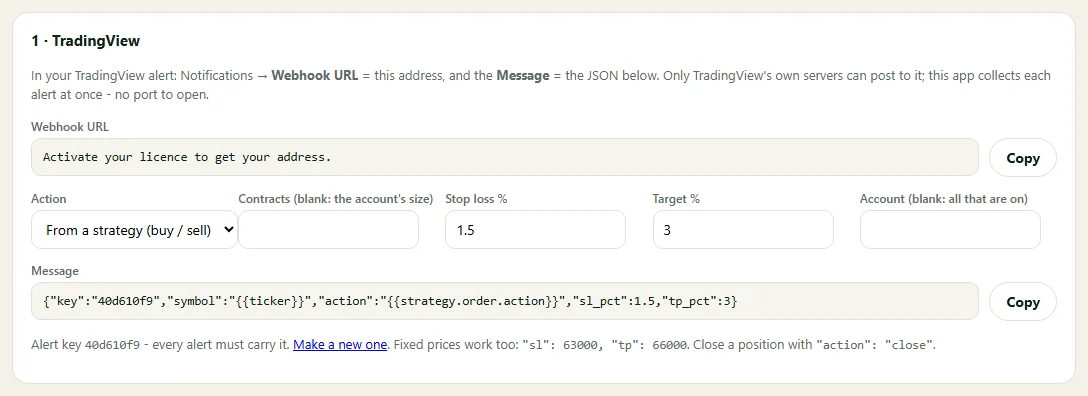
Stop loss 1.5% and target 3% typed in; the card writes them into the message as sl_pct and tp_pct (version 1.0.0 shown).
Strategy alerts or indicator alerts?
A strategy knows its own side. So put {{strategy.order.action}} in action, and one
alert sends buy or sell as the strategy trades. An indicator alert has no side of its own. Make one alert with
action buy, and a second one with sell or close. The card's Action list offers both ways and writes the matching message.
Options from a coin alert
Set an account to Options, and a plain BTC buy alert buys a call. A sell alert buys a put. The copier takes the
strike closest to the current price and the first expiry 12 or more hours out. To choose them yourself, name
option, strike or expiry in the alert.
The order is a limit at most 2% above the best ask. It fills at once or not at all, and never past Delta's price band. A close sells the option back. The copier never writes options, and options carry no stop loss or target, because those prices belong to the coin, not the option.
A MOVE account (India) buys the at-the-money MOVE contract and sells it back on a sell or close. A binary account (Global) buys a binary call or put on the next expiry, and it settles by itself.
How to connect TradingView to Delta Exchange India or Global
For India, set the account's Delta field to India and use a key made on Delta India. Global keys go with Global. Delta's API documentation keeps the two apart, and so does the app: each region has its own Real and Demo address.
- India: the BTCUSD, ETHUSD and other perpetuals, call and put options, MOVE options, plus spot on BTC_INR, ETH_INR, SOL_INR and XRP_INR. A spot trade's amount is in INR, and Delta may ask for KYC before spot.
- Global: BTCUSDT and other perpetuals, options, and binary options, which exist on Global only.
- Spot: a sell only sells coins this app bought, not ones you held before.
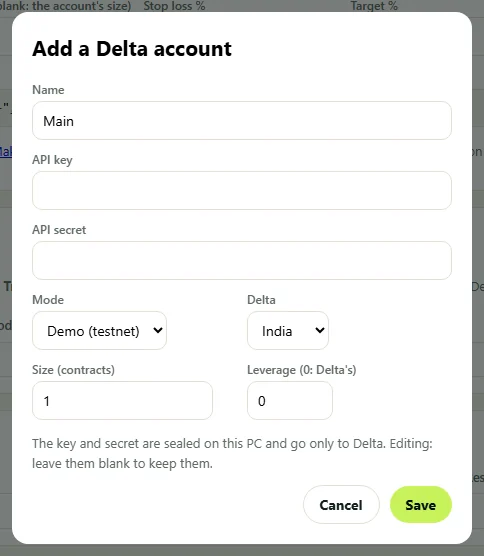
Each account picks Demo or Real and India or Global. This shot is from version 1.0.0; the current dialog adds a Market field.
Mistakes when you connect TradingView to Delta Exchange
- IP not on the whitelist. "Delta refused this PC". Add the PC's public IP to the key. If your home IP changes, add the new one too.
- Wrong key for the account. A demo key on a Real account, or an India key set to Global: "Delta does not know this API key".
- Trading off on the key. "This API key may not trade". Switch the permission on at Delta.
- PC clock off. Delta rejects a late signature, so the app matches Delta's clock and tries once more. If it still fails, turn on automatic time in Windows.
- Plain text in Message. "Not JSON". Paste the card's message as it is.
- Old alerts after a new key or URL. They fail until you paste the new message or address into each one.
- Port 80 busy. Another program, such as IIS, holds it. Close it or pick 443.
- Stop on the wrong side. Delta refuses the order. Check that a buy's stop sits below the price.
Price and the free demo
The TradingView to Delta Exchange Copier is a one-time purchase at $150. Delta accounts covered: 2. More accounts cost $30 each, one time, and show up in the app within 15 minutes of buying. Each key belongs to a single computer.
The demo key is free and runs for up to two days. If you buy, you keep that key, and it simply becomes lifetime. Payment is with Binance Pay in USDT, and all sales are final (see the refund policy). So test on Delta's testnet first: Test order, on a demo account set to futures or spot, buys a small BTC position and closes it again.
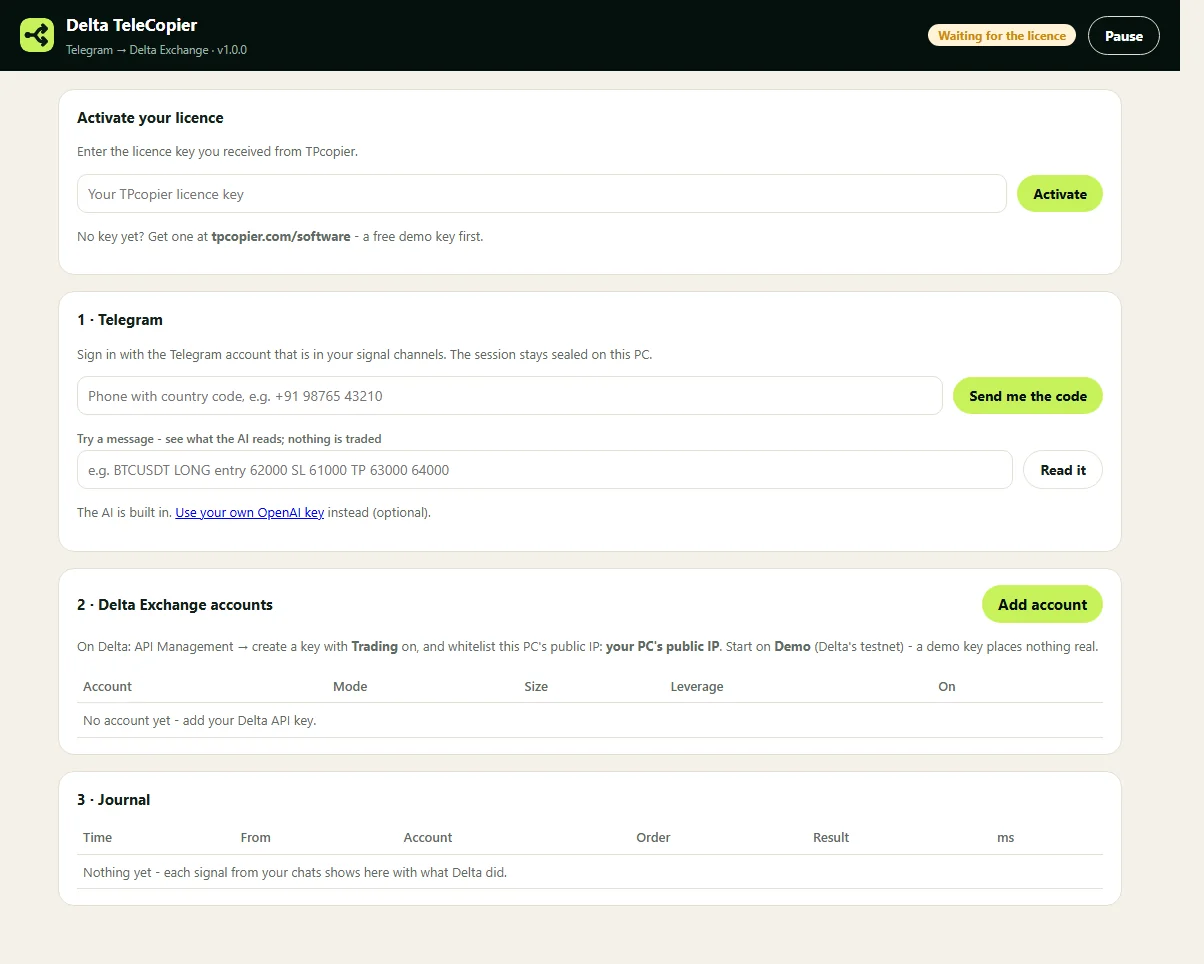
The Telegram version reads your channels with AI instead of alerts (version 1.0.0 shown).
Your signals come from Telegram channels? See the Telegram to Delta Exchange copier. Every other app is on the software page. Before real money, read our risk checks for signal copying.
Connect TradingView to Delta Exchange: questions.
More: the install guide and every crypto app.
Do I need a paid TradingView plan for webhook alerts?
Yes. Webhooks need a paid TradingView plan, and TradingView sends them only with two-factor authentication switched on.
Do I need a static IP to connect TradingView to Delta Exchange?
For Delta, a fixed IP is easiest, because the key trades only from whitelisted addresses. For TradingView, yes too: it posts only to port 80 or 443 on a public IP, so a home line that shares one address cannot be reached. A Windows VPS solves both.
Can I use TradingView strategies and indicators?
Yes. A strategy alert passes its side in action. For an indicator, make one alert per direction with a fixed buy, sell or close.
Can an alert buy the right option strike?
Yes, on an Options account. It takes the strike closest to the price and the first expiry 12 or more hours out, unless the alert sets its own option, strike or expiry.
How to connect TradingView to Delta Exchange India?
Set the account's Delta field to India and use a key made on Delta India, Demo or Real. MOVE options and INR spot are on India; binary options are on Global only.
How much does the TradingView to Delta Exchange copier cost?
$150 once, with a free demo key first. All sales are final, so test on Delta's testnet before you buy.
Risk warning: crypto futures, options and other leveraged products carry a high risk of losing money. TPcopier is software that places the alerts you set up; it gives no trading, tax or legal advice and makes no promise of profit. Delta Exchange and TradingView are trademarks of their owners; TPcopier is not affiliated with them.
Connect TradingView to Delta Exchange on your PC.
Try it on Delta's testnet before any real order.