TradingView to Binance bot, by webhook.
TPcopier's Windows app is a TradingView to Binance bot with no code to write. Each webhook alert becomes an order on your Binance account, signed with your API key on your own Windows computer or VPS. It trades USD-M and COIN-M futures, spot, cross or isolated margin, and options, with the alert's stop loss and target. Alerts are JSON, so no AI guesses at them.
How does a TradingView to Binance bot work?
TradingView cannot sign a Binance order. An alert is just a message, while Binance wants each order signed with your API secret. So a small program has to sit between them: it takes the alert, checks it and sends the signed order.
Here that program is the TPcopier app on your own Windows PC or VPS. The chain has four links:
- An alert fires on your TradingView chart or strategy.
- TradingView posts the alert's message to your webhook URL.
- The app checks the alert key and reads the JSON.
- It signs one order per account with that account's key, and sends them to Binance at the same time.
Your Binance key never goes into TradingView. It stays sealed on the computer that runs the app, and only Binance sees it.
To run the TradingView to Binance bot you need three things. First, Windows 10 or 11 (64-bit) on a PC or VPS that stays on. Second, a Binance API key with your market switched on. Third, a TradingView plan that sends webhook alerts.
How the alert reaches your PC
The app shows one TradingView to Binance webhook URL, and you paste it into the alert.
- Straight to your PC. TradingView posts straight to your PC's public IP on port 80 or 443, the only ports it sends to. A button in the app opens the port in Windows Firewall. On a VPS, open it in the provider's firewall too.
- A public IP. A home line that shares one IP with other customers (CGNAT) cannot be reached, whatever you open. Run the app on a Windows VPS instead.
Only TradingView's own servers can place an order. They post from four IP addresses, listed on TradingView's webhook help page. The URL also holds a long random token. Press Regenerate and you get a new one, while the old one stops at once.
The app handles alerts one at a time, in the order they came.
The TradingView to Binance alert message
You never write JSON by hand. The TradingView card in the app builds the message from a few fields, and you copy it into the alert's Message box. Sending a TradingView strategy to Binance works the same way: pick From a strategy, and TradingView fills in buy or sell for each fill.
The app trades every alert that reaches it. So the alert's own trigger setting in TradingView, such as once per bar close, decides how often you trade.
{"key":"YOUR-ALERT-KEY","symbol":"{{ticker}}","action":"{{strategy.order.action}}","sl_pct":1.5,"tp_pct":3}
| Field | What it does |
|---|---|
key | The alert key the app shows. Without it, nothing trades. |
symbol | TradingView's ticker, read as it comes |
action | buy or long, sell or short, close, closelong or closeshort |
market | usdm, coinm, spot, margin, isolated or options; blank uses the account's own |
usdt or qty | An amount or a quantity; blank uses the account's amount |
sl, tp | Prices, or sl_pct and tp_pct as a percent from the price |
option, strike, expiry | Options only: call or put, a strike or atm, a date |
account | One account's name; blank or "all" sends it to every account that is on |
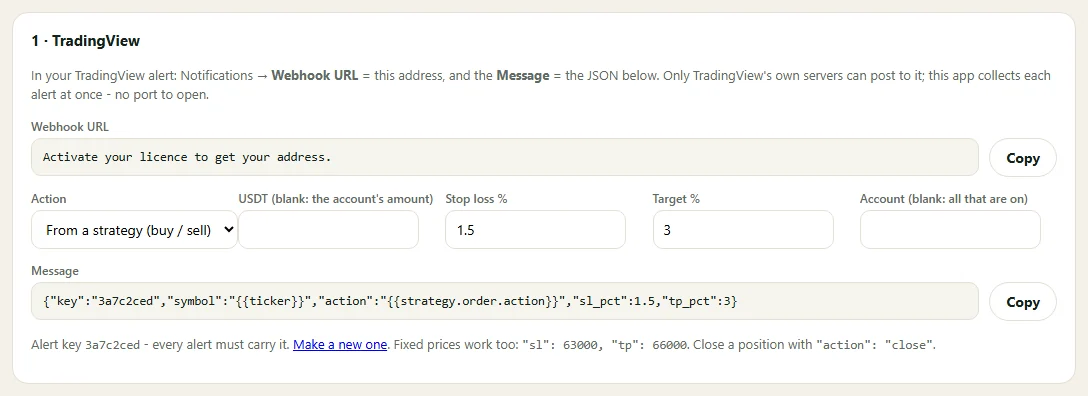
The card writes the message: a strategy alert with a 1.5% stop and a 3% target. An early version; the card now also shows the direct URL and a Market list.
Symbols and markets
Each Binance account in the app trades one market. Still, an alert can name another with market. TradingView
tickers work as they come:
BINANCE:BTCUSDT.Pmeans the USD-M BTC perpetual.BTCUSD.Pon a COIN-M account means the coin-margined perpetual.BTCUSDT25Z2026orBTCUSDT1!picks a USD-M quarterly contract.- USD-M also covers TradFi perpetuals such as XAUUSDT.
Size comes from the alert or the account. Spot, margin, USD-M and options count in USDT. COIN-M counts in whole contracts of 100 USD (BTC) or 10 USD (other coins). The app rounds to Binance's step for that coin. If an order is under Binance's minimum, the app refuses it and writes the reason in the Journal.
Using the TradingView to Binance bot on futures? Set leverage per account; 0 keeps the leverage you have on Binance. One-way and hedge mode both work.
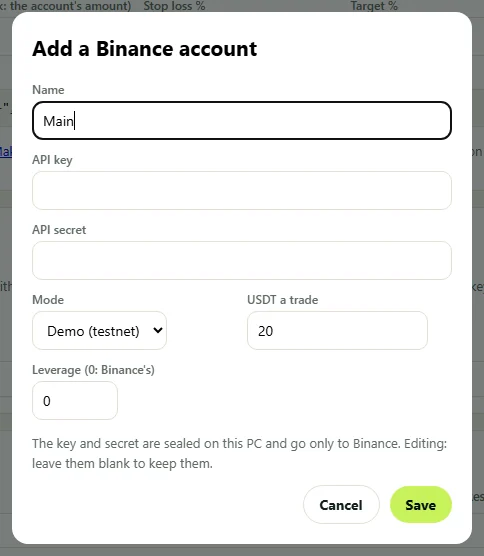
Adding an account: name, key, secret, Demo or Real, amount and leverage. An early version; the form now asks for the market too.
Stop loss, target and closing
With TradingView alerts to Binance, a stop loss and a target can come as prices, or as a percent from the price when the trade opens. How Binance holds them depends on the market:
- Futures: two conditional orders that close the whole position when the mark price reaches them.
- Spot: one OCO order for the coins the app bought, after the fee.
- Margin: one OCO that repays the loan as it closes.
- Options: Binance takes limit orders only there, so no stop loss or target.
Say Binance turns down the stop on a futures or margin position. The app sends it once more, and if that fails too, it shuts the position straight away. If even that close fails, the Journal tells you in capitals to close it on Binance.
To exit, send "action":"close". It closes the whole position on that symbol at market and cancels its stop
and target. Use closelong or closeshort to close one side. A spot or margin close touches only
the coins this app bought; the rest of your wallet stays as it is.
Test on Binance's demo first
Make the API key on demo.binance.com and add the account as Demo. Then press Test order. The app buys the smallest order that market takes and closes it again, all on Binance's demo. That proves the key, the clock and the order path with nothing real.
Next, fire a real alert from TradingView at the demo account. To check the direct URL, open it in a browser on your phone over mobile data. It answers ok and places nothing. The Journal lists every alert, each account's order, Binance's answer and the time it took in milliseconds.
Run each new strategy through the TradingView to Binance bot on the demo account first. Before an account goes Real, the app asks you to confirm, because from then on each alert trades real money. The Pause button halts all trading in one click.
When an alert does not trade
When the TradingView to Binance bot stops trading, start with the Journal. Each line says what happened, and most lines point to one of these fixes:
| What you see | Why, and the fix |
|---|---|
| Nothing in the Journal | TradingView could not reach the URL: port shut, no public IP, or a shared home IP. Open the port, or run the app on a Windows VPS. |
| Wrong or missing alert key | The message lacks the current key. Copy the message again. |
| An alert from another IP, refused | Someone else posted to the URL. Press Regenerate. |
| Too late to trade | It reached the app over 60 seconds after TradingView sent it. |
| Binance refused the API key (-2015) | Check the key, its market permission and the trusted IP. |
| Signature not accepted (-1022) | The API secret does not match the key. |
| Clock far off (-1021) | Let Windows sync its time. The app also re-matches the clock and retries once. |
| Smaller than Binance allows (-4164) | Raise the amount. |
| No demo on Binance | Margin and options need a Real key. |
Binance lists what each error code means in its API documentation.
Price and licence
The TradingView to Binance Copier costs $150, paid once. Accounts included: 2. Each further account is $30, also once.
First take the free demo key on the Software page. A demo key caps new trades a day, though a close always goes through. Binance Pay takes the payment, in USDT, and the same key becomes lifetime. One key works on one computer. Every sale is final, as the refund policy says.
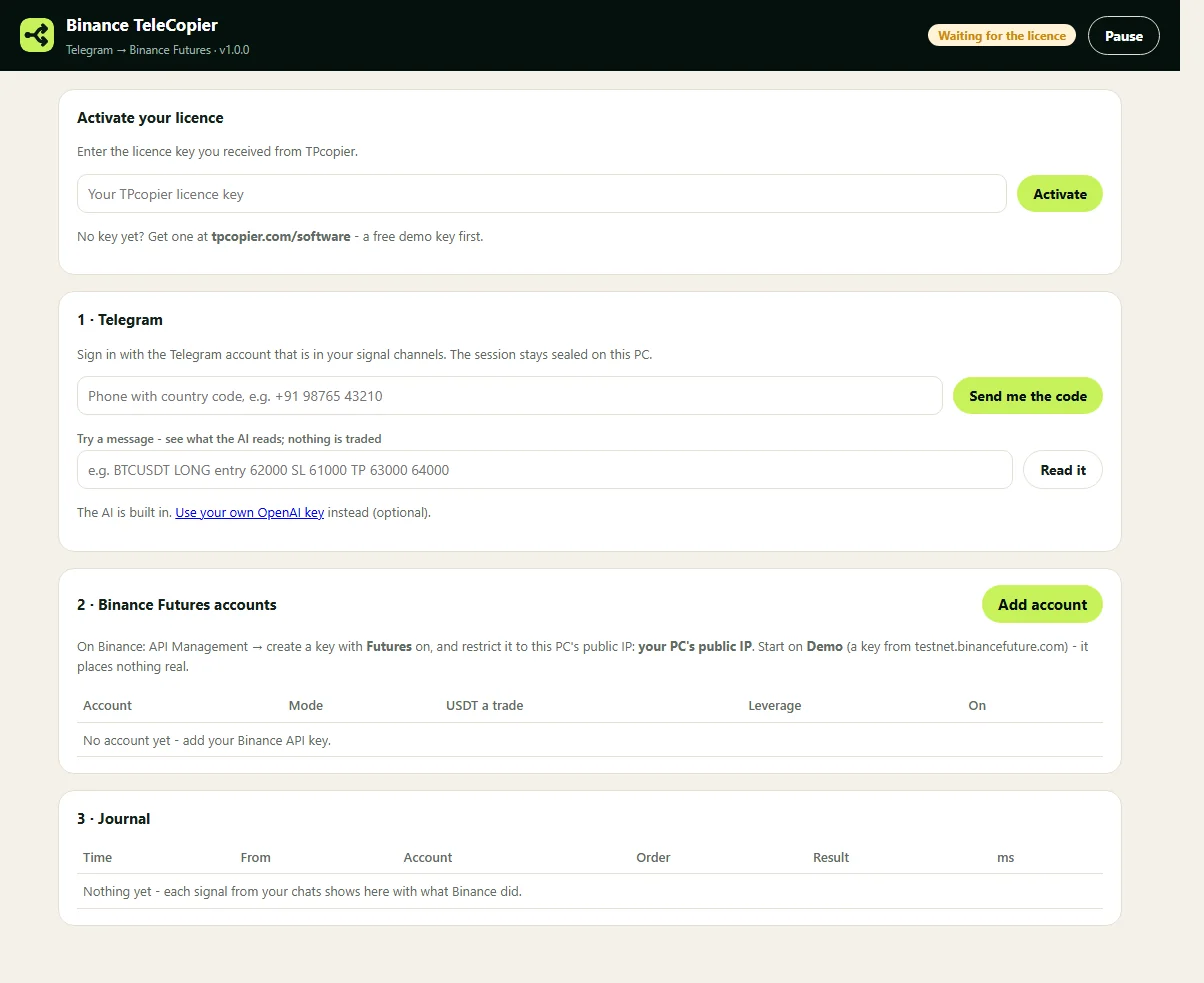
Both Binance apps open with this licence card: paste the key, press Activate. This shot shows the Telegram app, version 1.0.0.
Signals come from a Telegram channel instead? The Telegram to Binance copier reads them with AI and trades them through the same Binance engine. On MetaTrader? See TradingView to MT4/MT5 in our cloud.
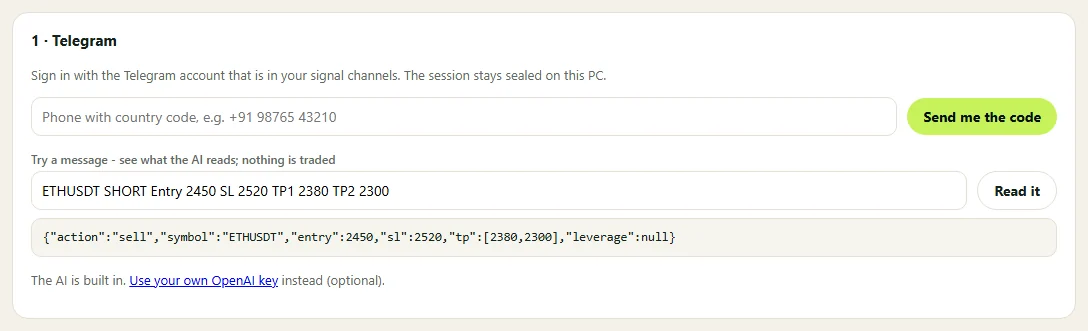
The Telegram app shows its AI's read of a call before anything trades.
TradingView to Binance bot questions.
See every crypto app on the Software page, or follow the setup guide.
Do I need a paid TradingView plan for webhooks?
Yes. Webhook alerts need a paid plan, and TradingView sends them only when 2-factor authentication is on.
Does the TradingView to Binance bot put my API keys in the alert?
No. The alert carries only a short alert key. Your Binance key and secret stay sealed on your PC.
Can I connect TradingView to Binance futures without opening a port?
No. TradingView sends webhooks only to port 80 or 443, so that port must be open on a computer with a public IP. A small Windows VPS works when your home line cannot be reached.
Can I test on the Binance futures testnet first?
Yes. Make the key on demo.binance.com, or bring one from the old futures testnet. Spot, USD-M and COIN-M work there.
Can one alert trade several accounts?
Yes. Leave the account blank and it goes to every account that is on, all at once.
Must the computer stay on?
Yes. Orders leave from the machine running the app, so keep it on and online.
Risk warning: crypto trading carries a high risk of loss; leverage on futures and margin makes losses bigger, and a bought option can expire worthless. TPcopier is software that places the alerts you set up; it gives no trading advice and makes no promise of profit. Binance and TradingView are trademarks of their owners; TPcopier is not affiliated with them.
Your alerts, placed on Binance.
Run the TradingView to Binance bot on the demo with a free key.