Telegram Forex Copier Setup for MT4 and MT5 in Six Steps
A Telegram forex copier turns a channel's post into an order in your own account. The channel writes "GOLD BUY 4380, SL 4370, TP1 4400" and the trade opens in your MT4 or MT5 account without you typing it. TPcopier runs the MetaTrader terminal for you on its own servers. The whole set-up happens on the website, and the PC on your desk can stay off. The guide to running an EA without a VPS explains that cloud side.
Still deciding whether you need a Telegram signal copier at all? That page covers what it does and what it costs. If you're comparing tools, see the Copygram comparison or how TSCopier and TPcopier differ.
Two parts between the channel and your broker
TPcopier reads the channel. You sign in with your own Telegram account once. TPcopier then stays signed in on its servers and reads every channel you switch on, day and night. You don't add a bot to anyone's channel, which you couldn't do in someone else's channel anyway.
The TPcopier Telegram EA trades it. This Expert Advisor runs inside a MetaTrader 4 or 5 terminal on TPcopier's server, with Algo Trading already on. It opens and manages the orders with your broker's prices and symbol names.
What the Telegram forex copier reads from a signal
Prices come from the message and from nowhere else. If a message gives no stop loss, the reader doesn't make one up; what happens then is an EA setting, covered further down. These are the layouts it handles every day:
- A price on the direction line, as in "GOLD BUY 4380", is the entry.
- Two prices joined together are an entry zone, never an entry plus a target. That includes a zone on its own line under "XAUUSD SELL NOW".
- No price at all, as in "GOLD BUY NOW", means a market order.
- A limit or stop order only happens when the message says "limit" or "stop".
- Each take profit becomes its own order, so three targets mean three orders. The EA uses targets one to three by default and can take up to six.
The symbol is matched to your broker too. If the channel writes XAUUSD and your broker calls gold "Gold" or "XAUUSD.m", the EA finds the right name with nothing for you to set. For anything stranger there's a Replacements box.
Reading runs in a fixed order, and the Rules tab spells it out: your block list first, then the channel's learned layouts, then the AI. The AI only reads the first message in a layout it hasn't met. TPcopier then remembers that layout and reads the next message shaped like it without an AI call. Ahead of the first live signal, paste one of the channel's old posts into Test the reader on the Rules tab. It shows what the message would become, and nothing goes to MetaTrader.
Replies that manage the trade
Channels manage a trade by replying to the original signal. The EA follows those replies, but only on that signal's own orders:
- "SL to 4390" moves the stop loss.
- "TP2 4435" moves the second target's order.
- "New entry 4375" moves a pending order's price.
- "Close all" closes that signal's positions and deletes its pending orders.
- "Close half" closes 50%, and "breakeven" moves the stop to the entry price. Both work by message from the start.
The EA never does those last two on its own. Its automatic breakeven after a target and its trailing stop stay off until you switch them on in the EA's settings. A channel that says "move SL to entry" gets followed, and a channel that says nothing gets left alone.
The words behind each action live on the Rules tab, in any language, in lists such as Close the trade, Close half, Move the stop loss and Breakeven. If your channel has its own phrasing, add it there.
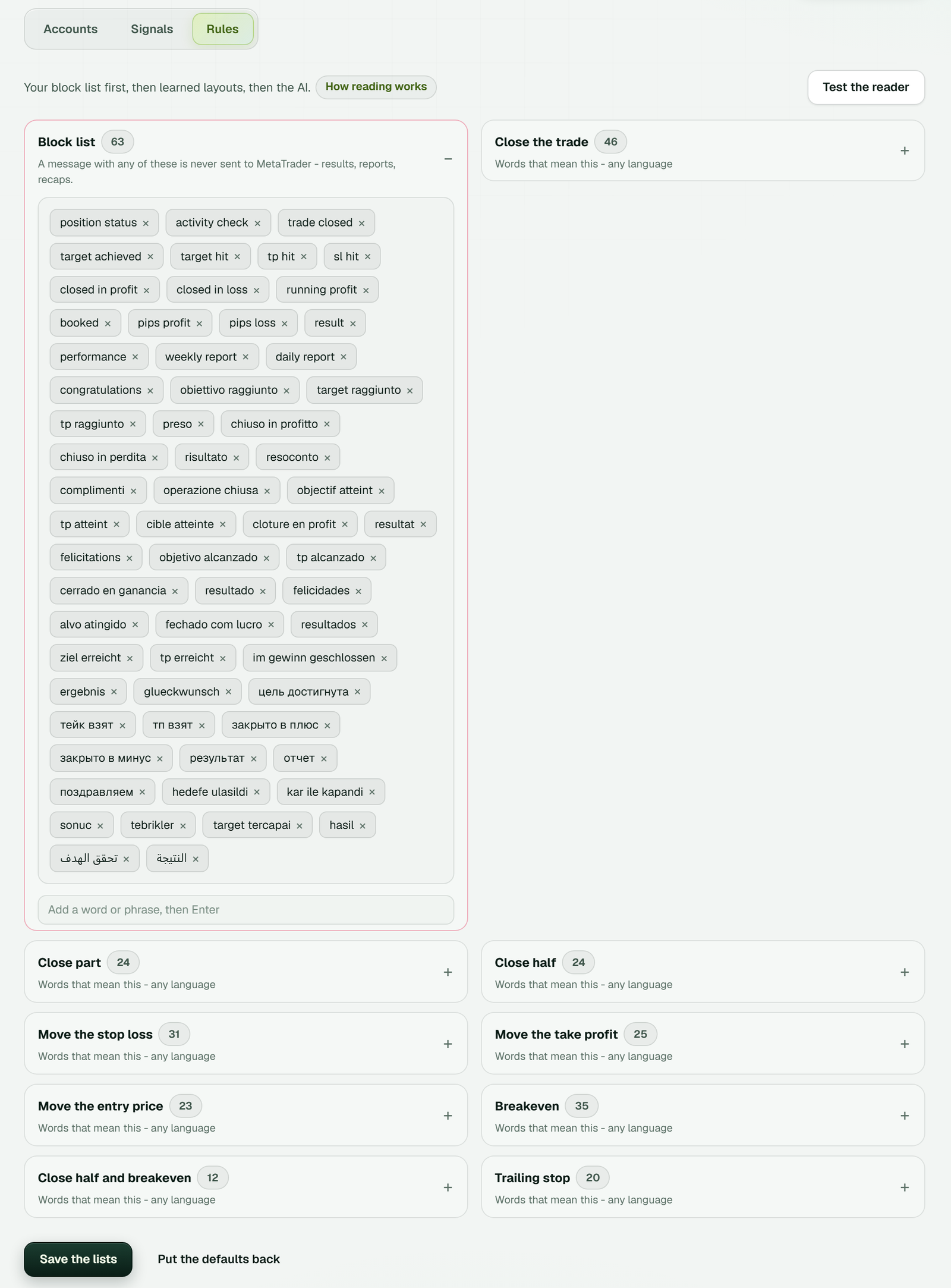 In this screenshot the block list holds 63 words and phrases in several languages, and Test the reader sits at the top right.
Result posts such as "TP1 hit, +70 pips" or "position status" sit on the block list. A message with one of those words never reaches MetaTrader, whatever else it says. A recap names an instrument, a direction and a price just like a fresh call, so without the block list yesterday's result could open a new trade today.
TPcopier Telegram setup in six steps
1. Make the bridge
Start the free trial. Open Bridge, press Make a bridge, pick Telegram as the sender and MetaTrader 5 or MetaTrader 4 as the receiver, then press Open the bridge.
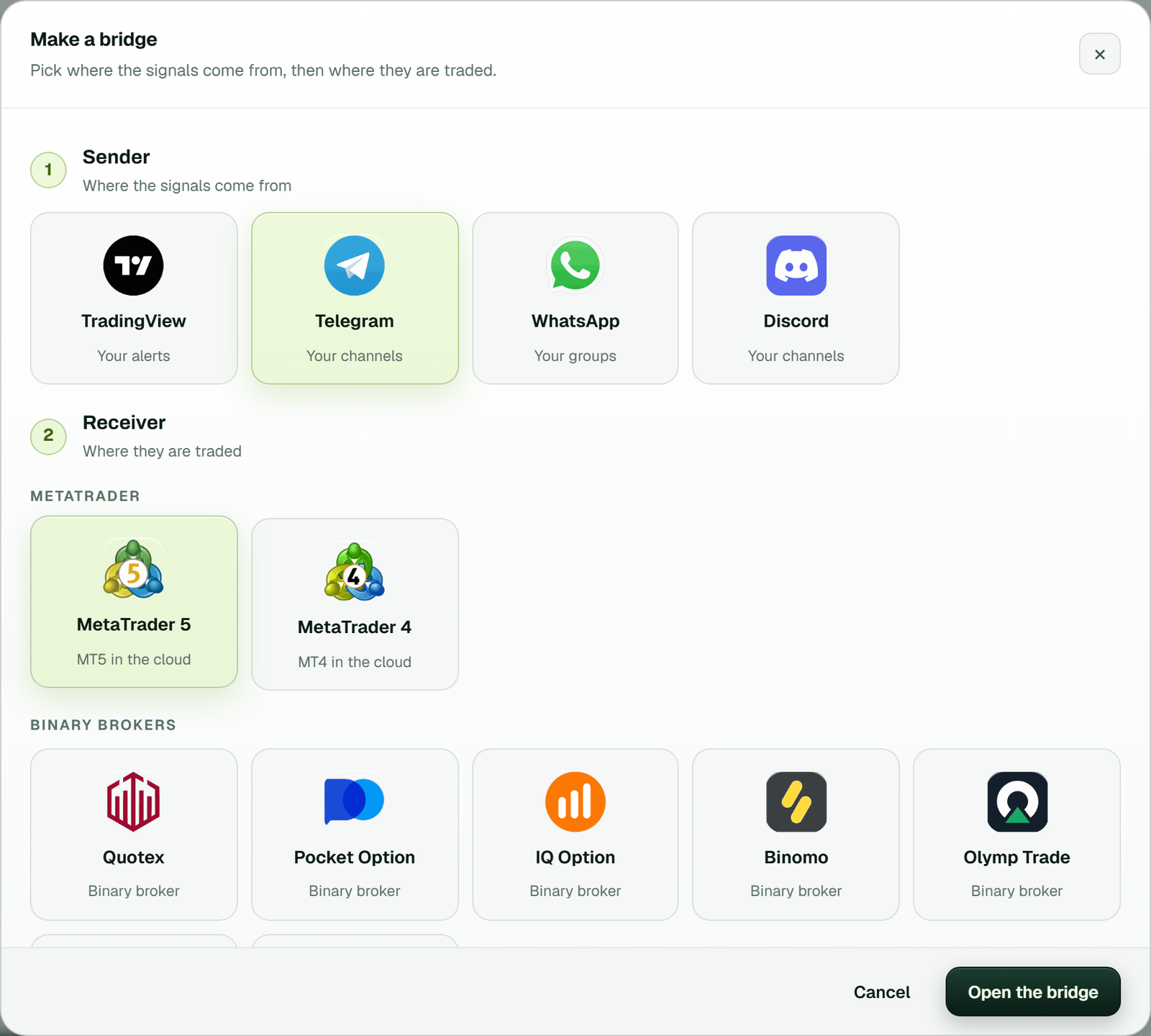 The same window lists the binary brokers too; on the MetaTrader side, MT5 and MT4 both run in the cloud.
2. Connect Telegram and switch on your channels
Press Connect Telegram and type your phone number. Telegram sends a code inside the Telegram app, and you type it into the box TPcopier shows. If your account has a two-step password, TPcopier asks for it next.
If the phone route fails, a link appears under it: "Did not work? Log in with QR code". You only see it after a phone step has failed.
Your channels then load, each with a switch. Turn on the ones you trust and leave the rest off.
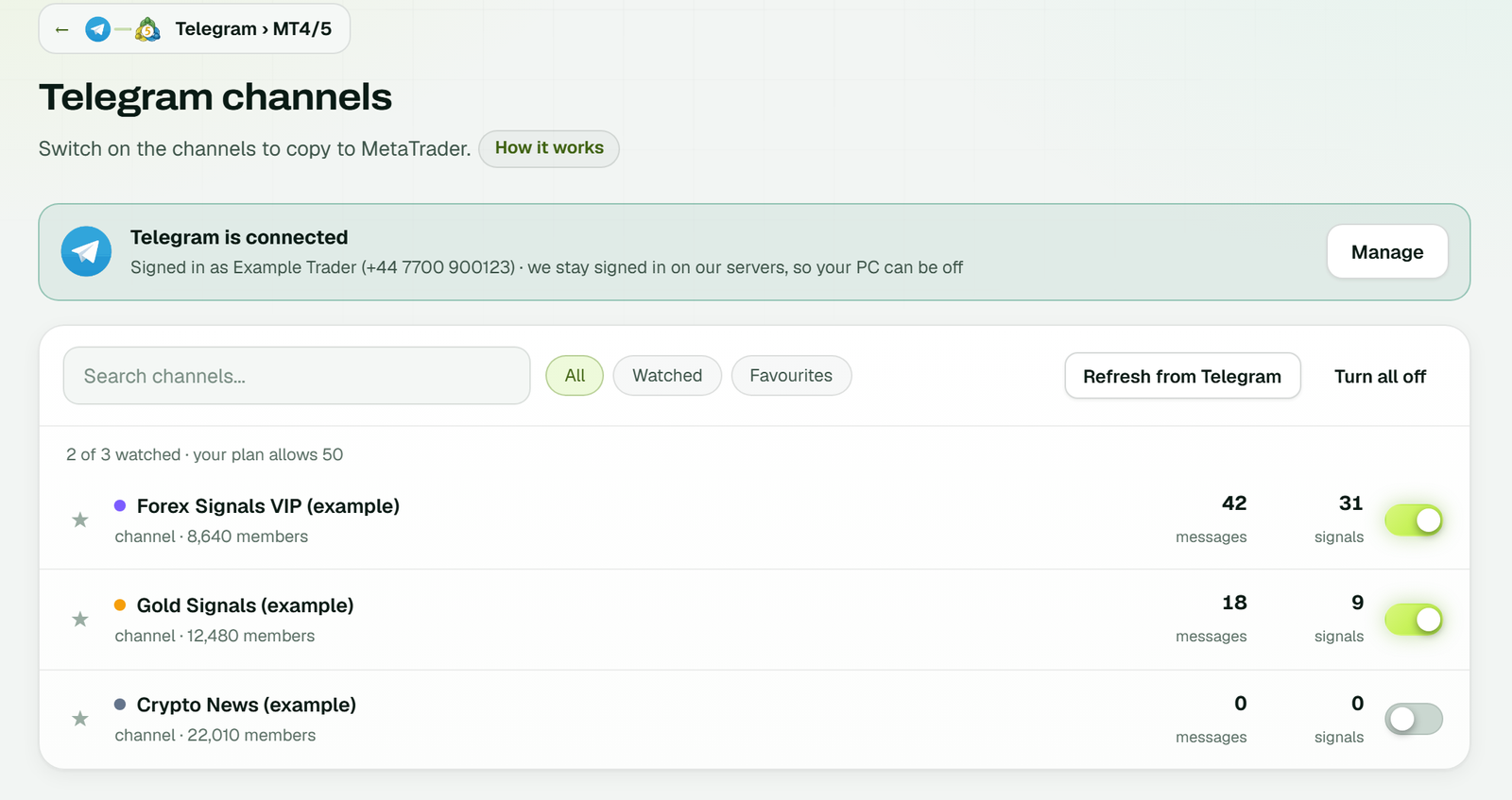 Only switched-on channels are read; Refresh from Telegram reloads the list (example workspace).
3. Add your MetaTrader login
In the bridge's window, press Add receiver. (Add account on the MetaTrader 4/5 page does the same.) The Add a MetaTrader account window asks for five things:
- the platform, MetaTrader 5 or 4
- a name for the account
- your broker (type a few letters to search)
- the account number
- the trading password
Press Add it. It has to be the trading password: an investor password is read-only, so MetaTrader would sign in with it and then refuse every order the EA sends. The password is locked with the cloud server's own key the moment you press Add, and the website can never read it back.
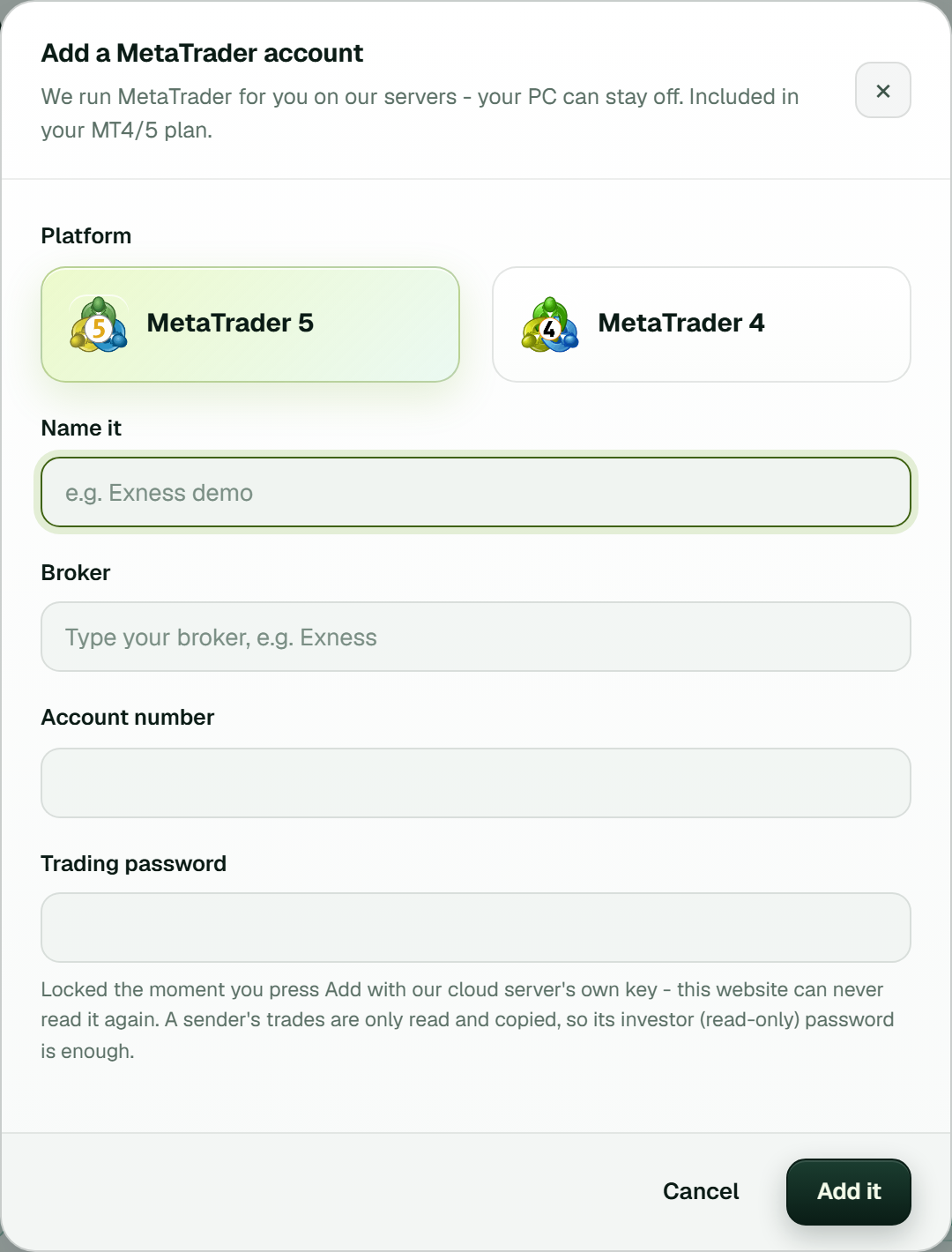 The note under the password field explains the cloud lock; Add it starts the terminal on TPcopier's server.
4. Wait for Running
TPcopier starts the terminal on its server, and the account card shows each stage: Preparing the terminal, Signing in, Turning on Algo Trading. It ends on Running with Algo Trading on, next to the balance, equity, open profit and positions as your broker reports them.
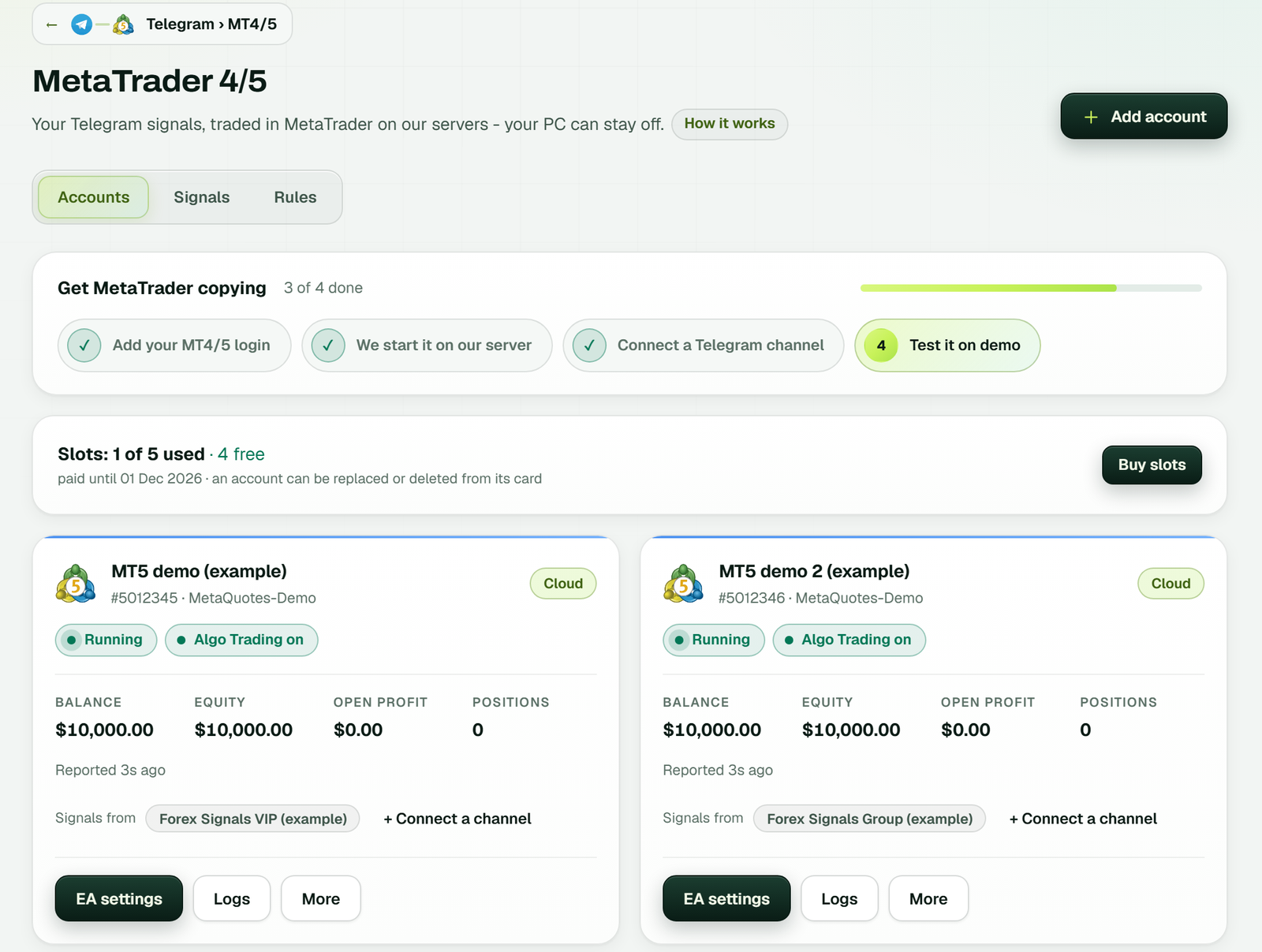 Both cards read "Reported 3s ago": the figures are the broker's own, passed on by the cloud terminal (example workspace).
If a card stays on Signing in or shows an error, check the broker server, account number and password first. Logs shows what the terminal reported, and More has Reconnect.
5. Link the channel to the account
Back in the bridge's window, use Link the channel to your MT account in the Set-up list, or + Connect a channel on the card. The link gets a gear for its settings and the status Live. From then on the channel's next signal goes straight to that account's MetaTrader.
 The bridge's window: Forex Signals VIP on the left, an MT5 cloud account on MetaQuotes-Demo on the right, the link Live, and the Set-up list below (example workspace).
6. Test it on demo
On a demo login, open More on the account's card and press Test connection. The EA answers and trades nothing. Then wait for the channel's next real signal and open the Signals tab. It lists every message, what TPcopier read it as and what the EA did with it. When an order didn't go out, the reason is there too. A wrong symbol or a missing target shows up there first, before it costs anything on a real account.
The EA settings worth checking
Press EA settings on the account's card to open the TPcopier Telegram EA's own inputs, sorted into groups, for that one account only. A saved change applies within seconds, without a restart. The defaults are careful, but these are the ones people change most:
- Lot size: a fixed lot (0.01 to start), an automatic lot of 0.01 per $1,000 of balance, or a risk amount to the stop loss. You can also set special lots per symbol, or a separate lot for each target (0.03, 0.02 and 0.01 until you change it).
- Symbols: a prefix or suffix, plus Replacements, which starts as GOLD=XAUUSD and SILVER=XAGUSD.
- Missing stop loss or target: the EA uses 100 pips from the entry by default. Set either to 0 to open without one, or tell the EA to reject such signals.
- Limits: most open trades, trades per day, week or month, daily or account loss and profit limits, and trading hours by weekday. All of them start switched off.
On MetaTrader 5, use a hedging account, and sort that out with your broker before you add it. The EA opens one position per target, and a netting account, as MetaTrader's own help puts it, keeps "only one common position for a symbol", so three targets would merge into one. A Telegram to MT4 copier set-up has no such choice to make, since MetaTrader 4 always allows several positions per symbol.
The same EA reads WhatsApp groups and Discord channels, so one account can also copy WhatsApp signals to MT4 and MT5 or take Discord signals to MT4 and MT5. For more on message layouts, read the guide to Telegram signal formats, and if you'd rather use your own code, see the signal copier API guide.
What it costs after the trial
The free trial runs for two days on one bridge, with up to 10 signals a day and no card. After it, Telegram to MT4/5 costs $40 a month for 2 accounts, $60 for 3, $90 for 5, $150 for 10 and $200 for 15, with the cloud MetaTrader included in every tier. The pricing page has the details, and the free trial guide covers what the two days include.
TPcopier is software that copies signals; it doesn't give trading advice.
FAQ
Is there a free Telegram signal copier?
Free scripts and EAs exist on GitHub and the MQL5 Market, but you run them on your own PC or VPS and keep MetaTrader open yourself. TPcopier isn't free after its two-day trial. If you'd rather pay once for a Windows app that runs on your own machine, the Lifetime Software page lists TPcopier's local apps.
Is there a Telegram copy trading bot I need to add?
No. The copier signs in as you rather than as a bot, so it lists the channels and groups you belong to. Private chats are skipped, so a signal a bot sends you in a private chat isn't read.
Can I set it up from my phone?
Yes. Every step happens on the TPcopier website and the terminal runs in the cloud, so a phone browser is enough. You don't need the MetaTrader app at all, though you can still open your account in it to watch the trades arrive.
What happens to a signal that arrives while the terminal restarts?
It isn't traded late. When the EA starts, it marks everything already sent as seen, so a restart never replays old signals into the market.
What if Telegram asks me to wait before sending another code?
TPcopier passes on Telegram's own wait, as "Telegram asked us to wait" followed by the seconds. Wait that long, then press Connect Telegram again. When Telegram has no other way left to send a code, scan the QR code in Telegram on your phone under Settings, Devices, Link Desktop Device.
Can I use it on a real account?
You can, and on a real account it trades real money from the first signal. To halt everything, press Stop Trading in the top bar. Nothing new opens until you turn it off again.
Sources
- MetaTrader 5 Help: General principles of trading (netting and hedging), read 5 November 2026.
- TPcopier pricing and llms.txt, read 5 November 2026.
- TPcopier Telegram EA 3.23 inputs and the TPcopier app, checked 5 November 2026.
Risk warning: trading forex and CFDs carries a high risk of losing money and is not suitable for everyone. The copier copies losing signals as well as winning ones. Nothing here is investment advice.