MT5 Copier EA: Install It in 6 Simple Steps, or Skip It
An Expert Advisor, or EA, is a program that trades inside MetaTrader by itself. An MT5 copier EA, like any other, needs its .ex5 file in the MQL5\Experts folder (File > Open Data Folder), a refreshed Navigator, a chart to sit on and Algo Trading switched on. MetaTrader 4 takes an .ex4 file in MQL4\Experts and behaves the same way. MetaQuotes' own help pages are the reference for each step here.
TPcopier's copier EA is the exception. It already runs inside MetaTrader 4 and 5 on TPcopier's cloud servers, so you never copy a file anywhere: you give TPcopier the account login and change the EA's inputs on the website.
Installing an MT5 copier EA by hand
MetaQuotes' help on algorithmic trading says every Expert Advisor lives in the platform's /MQL5/Experts folder, and Open Data Folder in the File menu takes you there. That folder is not where Windows installed MetaTrader, so a file copied into Program Files never shows up.
- In MetaTrader 5, choose File > Open Data Folder.
- Go into
MQL5, thenExperts, and paste the EA's.ex5file there. - Back in MetaTrader, right-click Expert Advisors in the Navigator and choose Refresh. Or restart the terminal.
- Drag the EA onto a chart, or double-click it in the Navigator. MetaQuotes' page on Expert Advisors and custom indicators gives both ways.
- In the window that opens, tick Allow Algo Trading on the Common tab, set the inputs the EA's maker gives you and press OK. Most EAs that "don't trade" are stuck here or at step 6.
- Check that the Algo Trading button in the top toolbar is on.
One switch on the EA, one for the whole terminal
Step 5's tick covers that one EA. The toolbar button covers the terminal, and per MetaQuotes' help, when it's off no Expert Advisor can trade, whatever its own settings say.
The names have moved around a little. MetaQuotes' help pages still say Allow Auto Trading and AutoTrading, while current MetaTrader 5 builds label them Allow Algo Trading and Algo Trading, as RoboForex's guide to enabling algo trading notes. It's the same pair of switches.
 An illustration of the Algo Trading button in MetaTrader 5, switched on, with an EA attached to a chart. MT4 calls the button AutoTrading.
When an EA starts, an icon appears in the chart's upper right corner. If that icon shows the disabled state, MetaQuotes says the EA can't trade, which means one of the two switches is still off.
EAs that call a web address need WebRequest
Some EAs fetch data from a website, such as a signal service or a licence check. MetaTrader blocks those calls until you list the address yourself: MetaQuotes' platform settings help says Allow WebRequest for listed URL is off by default, for security.
The WebRequest documentation adds that the EA's server must be on that list, under Tools > Options > Expert Advisors. Ask the EA's maker for that URL, add it there and press OK. If they name none, your EA probably doesn't need it.
The same install on MT4
CMC Markets' MT4 guide lists the steps: File > Open Data Folder, then MQL4\Experts, paste the .ex4 file, refresh the Navigator and drag the EA onto a chart.
Two names differ. On MetaTrader 4 the tick in the EA's window is Allow live trading, and the toolbar button is AutoTrading. MetaQuotes' MT4 help on launching an expert says a running EA shows its name and a smiley in the chart's corner. When live trading is off, an L appears instead.
MetaTrader's phone apps can't run an EA at all. The post on installing an EA on MT5 Android explains why.
Where TPcopier's EA runs
Everything above assumes MetaTrader runs on your PC or a VPS and stays on. TPcopier's MetaTrader 4/5 copier keeps MetaTrader on its cloud servers, one terminal per account, with the TPcopier EA inside. TPcopier signs the terminal in and turns Algo Trading on, and your PC can stay off.
What you hand over is the account login. TPcopier then reads your Telegram, WhatsApp or Discord messages, or your TradingView alerts, and passes each signal to that EA.
Set up the cloud EA, start to first test
- Open Bridge and press Make a bridge. Pick the sender (Telegram, WhatsApp, Discord or TradingView), then MetaTrader 5 or MetaTrader 4 as the receiver. Press Open the bridge.
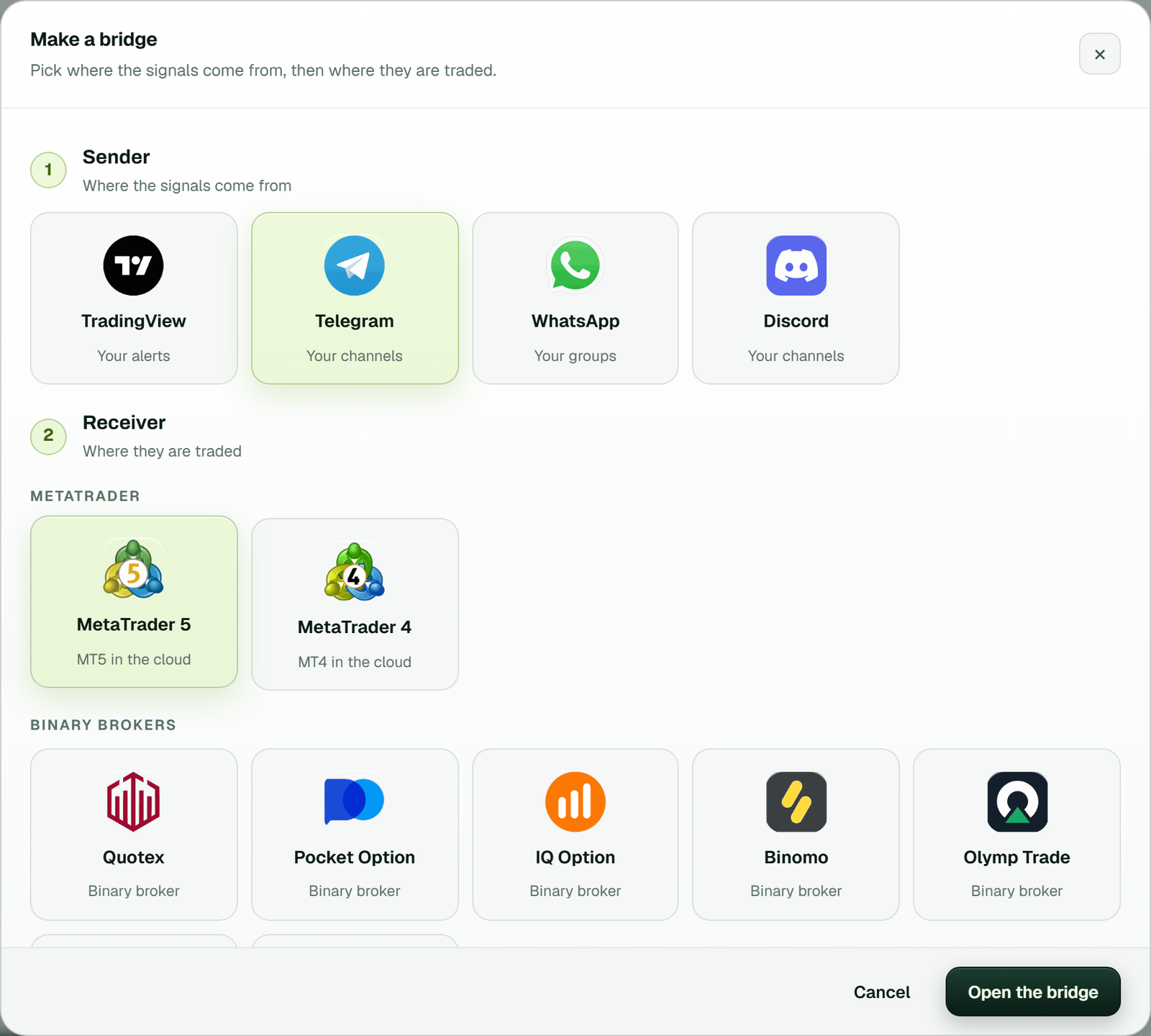 Make a bridge: Telegram picked as the sender and MetaTrader 5 ("MT5 in the cloud") as the receiver.
-
Connect the sender in the bridge's window. Telegram takes your phone number and the code Telegram sends in the app, with a QR code only if that fails. WhatsApp needs one QR scan as a linked device; Discord signs in with a QR code, your e-mail or phone and password, or a bot token.
-
Switch on the channels or groups you want copied.
-
Press Add receiver. Pick MT4 or MT5, name the account, type your broker's name and choose its server, then enter the account number and the trading password and press Add it.
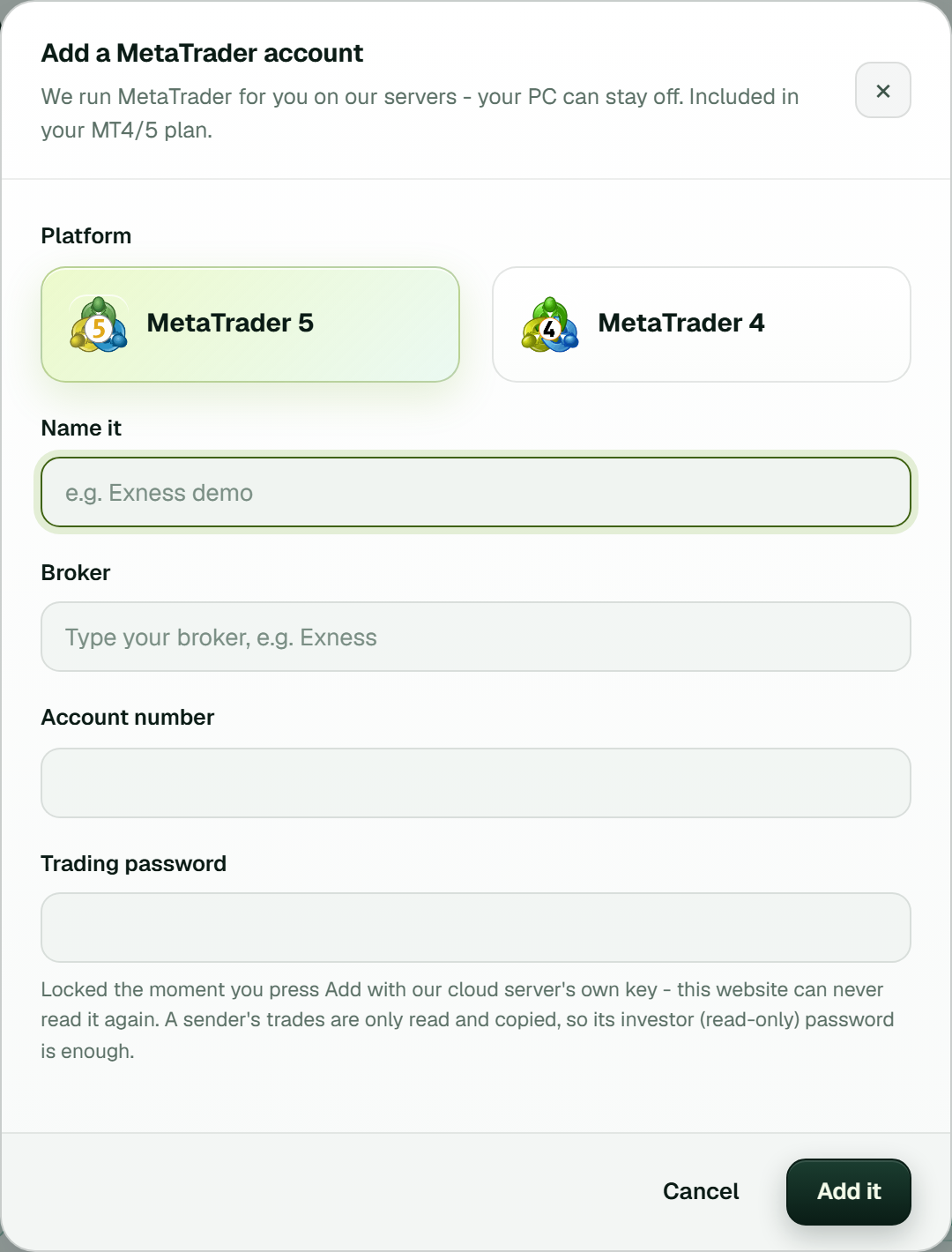 The Add a MetaTrader account window. The note under Trading password says our cloud server's own key locks it the moment you press Add.
-
Link the channel to the account in the bridge's window, or use + Connect a channel on the account's card. A channel copies nothing until it's linked.
-
Test on a demo account. On a Telegram bridge, open More on the card and press Test connection: the EA answers and trades nothing. For TradingView, send one alert to the demo account first.
What the card shows while it starts
The account's card on the MetaTrader 4/5 page shows Preparing the terminal, then Signing in, then Turning on Algo Trading. After that it settles on Running, with Algo Trading on. According to the page itself, this takes about a minute.
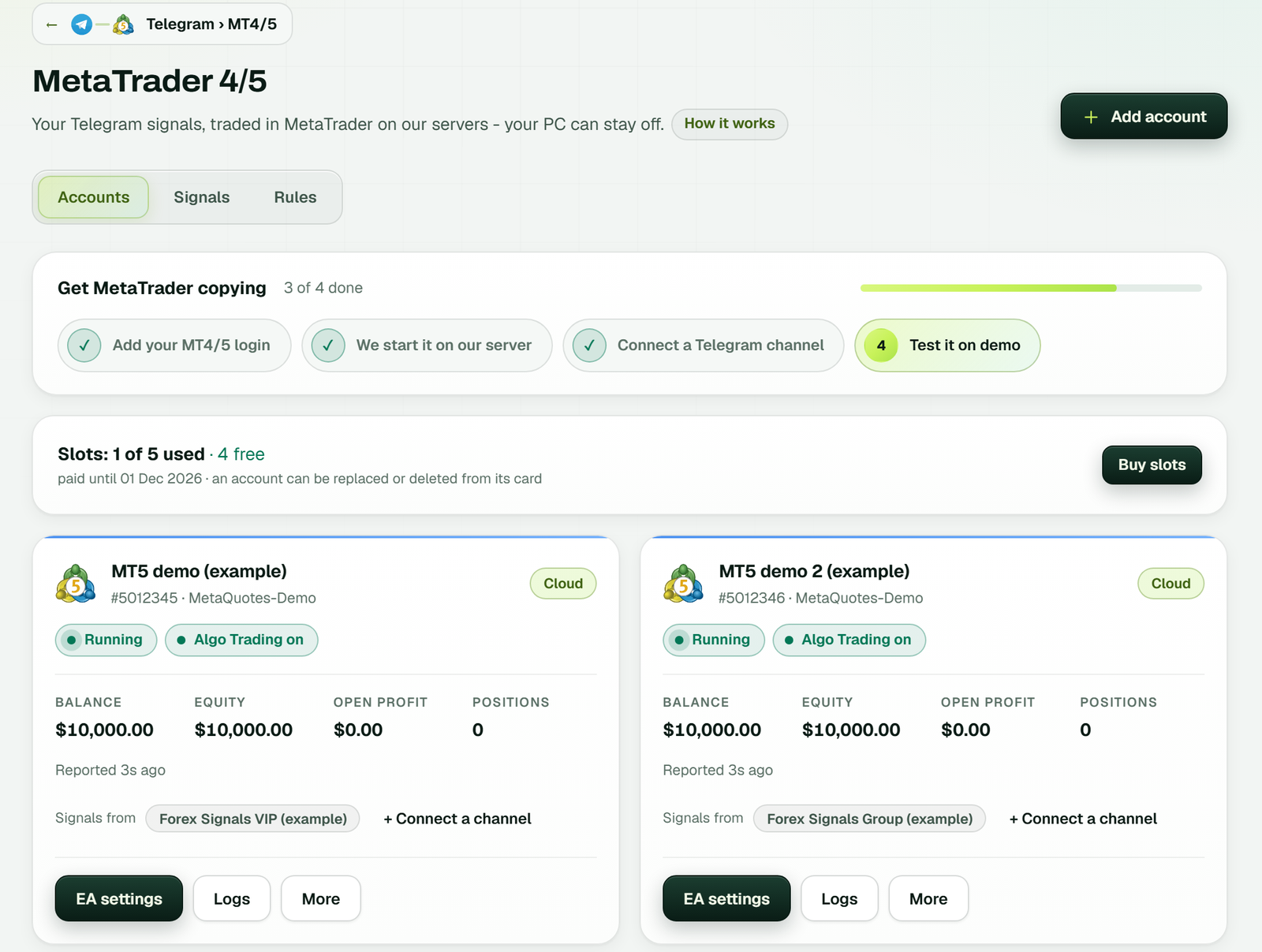 The MetaTrader 4/5 page: the Get MetaTrader copying checklist, the slots, and one card per account with Balance, Equity, Open profit, Positions and the channel it copies (example workspace).
Your trading password matters here. MetaQuotes' help on signing in to an account says an investor password lets you see the account but not trade, and a receiver has to trade. TPcopier seals the trading password with the cloud server's own key, and the website can't read it back.
Where the EA's settings live now
On your own PC you'd change an EA's inputs from the chart. In the cloud, the same inputs sit on the website.
EA settings on the card
EA settings opens every input of the TPcopier EA for that account, grouped the way MetaTrader groups them, with a search box at the top. Save, and the EA applies the change within a few seconds, without a restart.
The defaults suit a first test: a fixed lot of 0.01, Symbol Mapping set to GOLD=XAUUSD,SILVER=XAGUSD, and no spread filter. Type Of LotSize also offers an auto lot, a risk amount, special lots per symbol and separate lots per take profit. Prefix and Suffix handle broker names like XAUUSD.r.
The Rules and Signals tabs
The Rules tab decides how messages get read. Its block list holds words that stop a message reaching MetaTrader at all, such as result posts. Below sit word lists for Close the trade, Move the stop loss, Breakeven, Trailing stop and more, in any language. Test the reader shows what a message of yours would turn into.
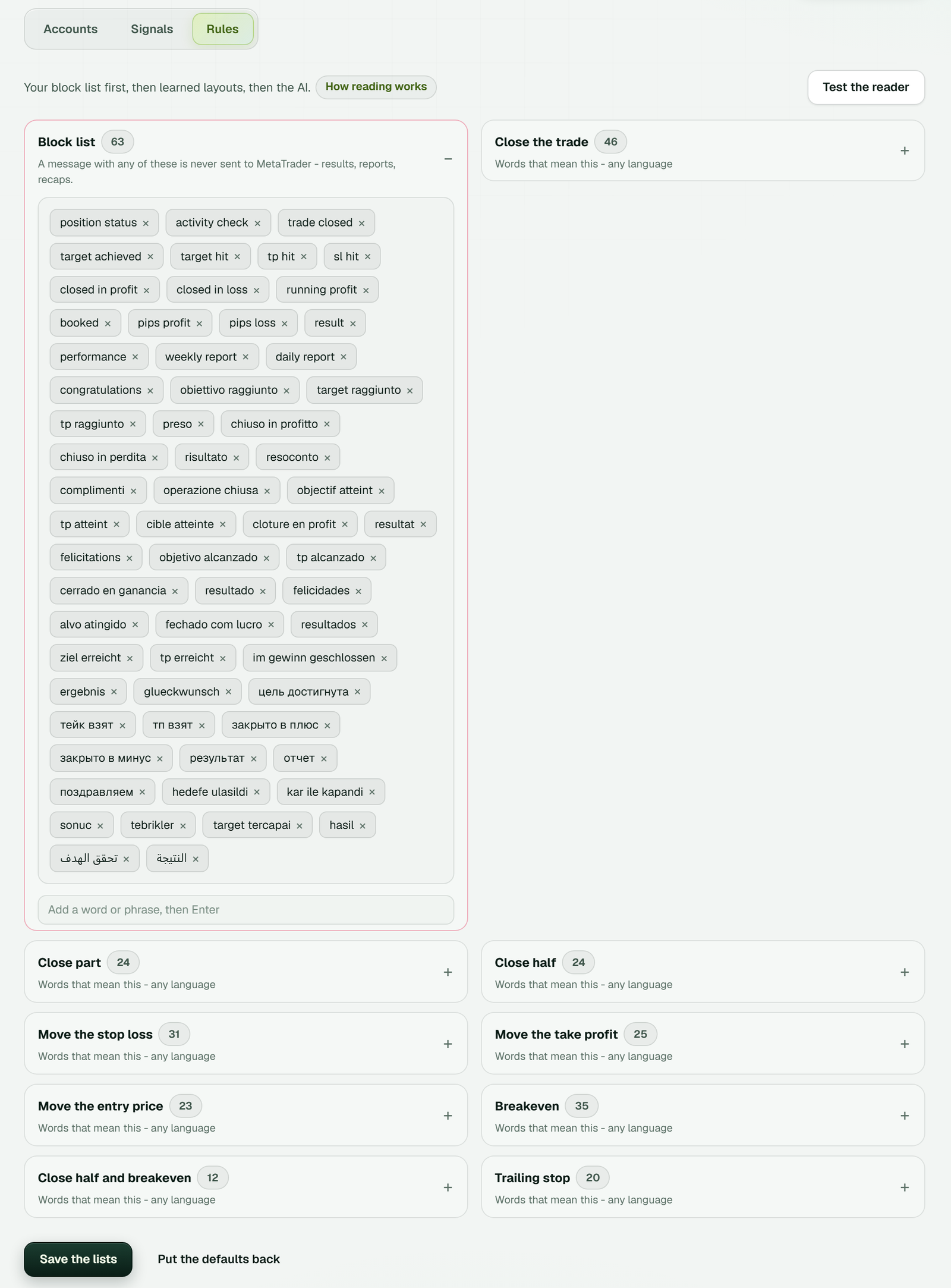 The Rules tab: the block list, the close and move word lists, Save the lists and Test the reader.
When a trade didn't appear, look at the Signals tab. It shows what each message was read as and what the EA did: taken, refused with the broker's own reason, or skipped with the rule that skipped it. Logs on the card hold what the cloud server reported for that account, kept for 14 days.
When the card doesn't reach Running
Most problems on a cloud account show up on the card, before the first signal arrives.
| What you see | What's behind it | What to do |
|---|---|---|
| The card stops short of Running with Algo Trading on | An investor (read-only) password went in the Trading password box | More > Password, then type the trading password |
| An error on the card, with a Reconnect button | Often the server: a demo login on a live server, or a spelling the broker doesn't use | Check the server as your broker's login window spells it; More > Replace with another account if the login was wrong |
| Algo Trading off on the card | The terminal hasn't turned Algo Trading on yet | Give it the minute, then More > Reconnect |
| Enter the password again | Our cloud server can't open the password it holds | Press Enter it and type the trading password |
| A signal refused on the Signals tab | The broker said no, and its reason is on that line | Read the reason; a symbol your broker names differently goes in Symbol Mapping |
On MetaTrader 5, use a hedging account. The EA opens one position per take profit, and a netting account merges positions on the same symbol. Also, if you change your password at the broker, give the cloud terminal the new one under More > Password.
Your own EA, or TPcopier's?
An EA you bought from someone else still goes on a PC or VPS that stays on, installed the MetaTrader way above. TPcopier's cloud runs its own EA and its MT4/5 trade copier, not third-party robots. Cloud vs VPS for a signal copier compares the two, and running an EA without a VPS goes deeper on the cloud side.
For signals from a channel, each sender has its own walk-through: Telegram to MT4 and MT5, copy WhatsApp signals to MT4, Discord signals to MT4 and MT5 and TradingView to MT4/MT5 in the cloud.
FAQ
What does the cloud copier cost?
Telegram, WhatsApp, Discord or TradingView to MT4/MT5 costs $40 a month for 2 accounts, $60 for 3, $90 for 5, $150 for 10 and $200 for 15, with cloud MetaTrader included. The 2-day free trial needs no card, and the pricing page has the current figures.
Does WebRequest matter for TPcopier?
It doesn't any more. TPcopier's EA runs in the cloud terminal, so there's nothing for you to allow in Tools > Options.
Test one channel on a demo account
Add a demo MetaTrader account, link one channel and press Test connection before anything touches real money. The Telegram to MT4/MT5 cloud copier page shows how each signal is read, and the free trial is where to start.
Risk warning: trading forex and CFDs can lose you money and is not suitable for everyone. TPcopier is software that copies the instructions you connect; nothing here is trading or investment advice.
Sources
- MetaTrader 5 Help: Algorithmic trading, trading robots
- MQL5 Reference: WebRequest
- MetaTrader 5 Help: Expert Advisors and custom indicators (all MetaQuotes pages read 4 November 2026)
- CMC Markets: How to install an Expert Advisor on MT4
- MetaTrader 5 Help: Platform settings, Expert Advisors tab
- RoboForex: Enable algo trading in MT5
- MetaTrader 5 Help: Account authorization
- MetaTrader 4 Help: Launching an Expert Advisor