Install an EA on MT5 Android? Honest Answer, 1 Copier Fix
Search for how to install an EA on MT5 Android and you will find pages that promise it takes a minute. It doesn't, because it can't be done. The MetaTrader apps for Android and iPhone are made for trading by hand, watching charts and getting alerts. They have nowhere to put an Expert Advisor and nothing to run it with. This post explains why, shows the three places an EA really can run, and how your phone still fits in.
Can you install an EA on MT5 Android?
No. MetaQuotes' own page for the MetaTrader 5 Android app lists what the app does. You get trading with every order type, charts with three styles, 30 built-in indicators, 24 analytical objects, financial news, alerts and push notifications. Running Expert Advisors is not on that list (checked on 30 October 2026).
An EA is a compiled file, .ex5 for MT5 or .ex4 for MT4. It lives in the Experts folder of the desktop terminal on a computer and runs inside it, attached to a chart. The phone app has no such folder, no Navigator to load it from and no chart to attach it to.
MetaTrader's help on algo trading makes the other half of the point. An EA works only while the terminal it sits in is running. So even the desktop route needs a computer that stays on.
The same answer holds for MT4 on Android and for both apps on an iPhone or iPad.
Why the "EA on your phone" guides fall short
Pages that claim otherwise usually describe one of two things:
- A remote desktop. You open a PC or a VPS from your phone and look at its MetaTrader. The EA still runs on that computer, not on the phone.
- A different app. Some programs offer "robots" for Android. These are not MetaTrader EAs, and an APK from an unknown site can be risky to install. Be careful with any app that asks for your trading password.
Neither one installs an EA in the MT5 Android app. If an EA is the plan, it needs a terminal on a computer somewhere.
Where an EA can actually run
There are three real choices:
- Your own Windows PC. Free if you have one, but it must stay on, awake and online all the time the EA trades.
- A VPS. A computer you rent in a data centre. It stays on for you, but you set it up and look after it yourself.
- A cloud terminal from a service. Someone else runs MetaTrader for you. With TPcopier, that terminal runs TPcopier's own EA and trade copier only, not any EA you bring.
Each one is covered below. Whichever you choose, your phone becomes the screen you check, not the place the EA lives.
Option 1: install the EA on your own PC
This is the classic route, and it takes a few minutes in the desktop terminal:
- In MetaTrader, open File, Open Data Folder.
- Go to MQL5\Experts (or MQL4\Experts for MT4) and put the .ex5 or .ex4 file there.
- Back in MetaTrader, right-click Expert Advisors in the Navigator and choose Refresh.
- Drag the EA onto a chart, tick Allow Algo Trading in its settings, and switch AutoTrading on in the toolbar.
An EA that talks to a website also needs that address allowed. That is done under Tools, Options, Expert Advisors, by ticking "Allow WebRequest for listed URL" and adding the address.
TPcopier's pay-once Windows apps do the copying for you. The Telegram to MT4/MT5 app finds every MetaTrader terminal on the PC and puts its EA files into each one with a single click.
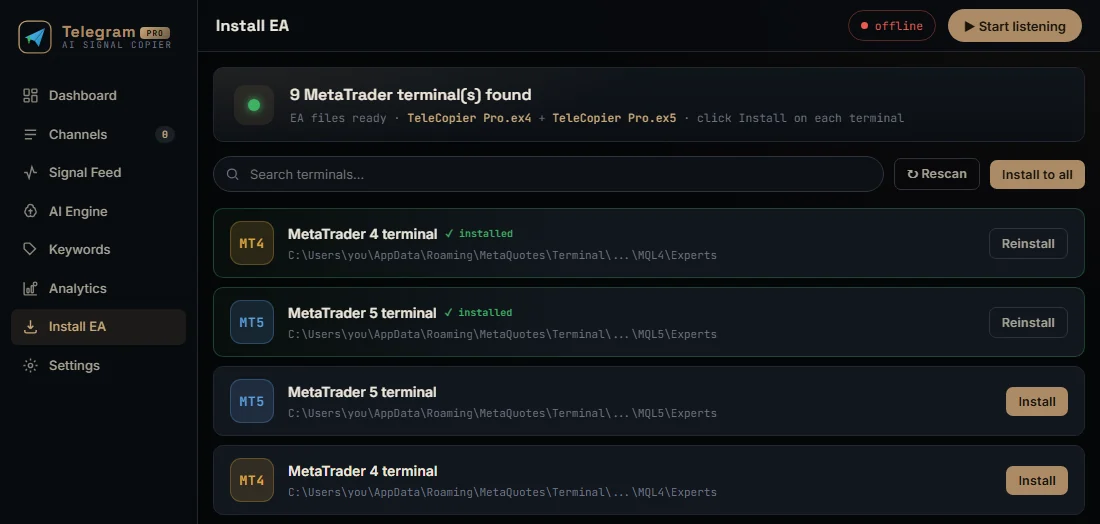 The Install EA page of the Telegram to MT4/MT5 Windows app: it lists each terminal on the PC and its Experts folder, with Install or Reinstall beside each.
For the full walk-through, with the usual errors and their fixes, read the guide on how to install the EA in MT4 and MT5.
Option 2: put MetaTrader on a VPS
A VPS follows the same four steps, only on a computer in a data centre. You connect to it with a remote desktop app, and Android has those too. That is the honest version of "running an EA from your phone": the phone is a window onto the VPS.
The cost is the rent plus your time. You install MetaTrader, keep it logged in, apply its updates and restart it when it hangs. If the VPS stops, the EA stops with it.
Option 3: a cloud terminal you set up from your phone
If the EA you want is a signal copier or a trade copier, the third route skips the computer altogether. TPcopier runs your MT4 or MT5 account in a cloud terminal with its EA already inside. You give the account's login, trading password and server. The cloud server's own key seals the password, and the terminal starts on TPcopier's servers.
From there it can do two jobs:
- Copy signals. Telegram channels, plus WhatsApp groups and Discord channels, reach the EA and become orders with entry, stop loss and take profits.
- Copy trades. The MT4/MT5 trade copier repeats one account's trades on others, across brokers. On live copies measured on 4 October 2026, it took a median of 7 ms on TPcopier's side, with the broker's own execution about 140 ms.
You set the EA's inputs on the website or in the Android app, not inside MetaTrader. Saved, they apply in a few seconds, with no restart. The signal copier Android app post shows the whole set-up done from a phone.
The limit is clear: this route runs TPcopier's EA and copier, nothing else. If you need your own custom EA, use a PC or a VPS. The signal copier without VPS page compares the cloud and a VPS side by side, and the MT5 trade copier page covers account copying.
Watch your EA from the MT5 app
Here the phone app comes back into its own. Trades belong to the account, not to the terminal that placed them. So log the MT5 Android app in to the same account, and you see every position your EA opens, wherever it runs. Use the same server and login as the terminal the EA trades on.
Two habits help:
- Use the investor password on the phone if you only want to watch. It is MetaTrader's read-only password, so a stray tap cannot close a trade.
- Remember that a manual close is real. With the trading password, closing a position on the phone closes it for the EA too.
Quick checks before your EA trades live
- Demo first. An EA trades the account it sits on, so a real account means real money from the first order.
- Account type. TPcopier's signal EA needs a hedging account on MT5, because each take profit gets its own position.
- Algo Trading on. On a PC or VPS, check the AutoTrading button is green after every restart.
- One chart. TPcopier's EA trades every symbol from a single chart, so a second copy is never needed.
FAQ
Can I install an EA on MT5 Android?
No. The MT5 Android app has no place to load an EA and cannot run one. EAs run in the desktop terminal on a computer, either your own PC or a VPS.
Can I install an EA on the MT5 iPhone app?
No, for the same reason. The iPhone and iPad apps are for manual trading, charts and alerts, not Expert Advisors.
How do I run an EA without a computer of my own?
Rent a VPS and install MetaTrader on it, or use a cloud terminal. TPcopier's cloud runs its own signal copier EA and trade copier on its servers, with no PC or VPS of yours.
Will I see my EA's trades on my phone?
Yes. Log the MT5 app in to the same account. Every position the EA opens shows there, because trades belong to the account.
Can I upload my own EA to TPcopier's cloud?
No. TPcopier's cloud terminals run only TPcopier's EA and its trade copier. For your own EA, use your PC or a VPS.
Is there a safe "EA for Android" app?
Not one that runs MetaTrader EAs on the phone. Apps that claim to are either remote viewers or something else entirely, so be careful with them.
Try the cloud route on demo
Want a copier running while your phone is the only device you carry? Start the free trial, add a demo MetaTrader account in the cloud, and watch its trades arrive in the MT5 app on your phone.
Risk warning: trading forex and CFDs carries a high risk of losing money and is not suitable for everyone. Nothing here is investment advice.