TradingView to Quotex Signal Copier: Easy Alerts in 9 Steps
Your TradingView indicator fires, and the rest is manual work. You open Quotex, find the pair, set the time and the stake, then click UP or DOWN. By then the price may have moved. Connecting TradingView to Quotex hands that routine over. TradingView sends the alert to a webhook address. TPcopier then opens a CALL or a PUT on your Quotex account, even when you're away.
TPcopier does this with its TradingView to binary brokers bridge. Think of it as a Quotex TradingView bot with nothing to install. TPcopier places the trades from its own servers. You need three things: a TradingView plan with webhook alerts, a Quotex account and a TPcopier account. Start on demo. The free trial needs no card. Developers can make the feed and its links from code with the TradingView webhook API.
TPcopier is not affiliated with Quotex or any other broker. Broker names are trademarks of their owners.
How a TradingView to Quotex alert becomes a trade
Every feed in TPcopier has its own webhook address. When your alert fires, TradingView posts its message to that address. TradingView waits only a few seconds for an answer. So TPcopier stores the alert, replies "ok" at once, and places the order straight after.
First, TPcopier checks the alert once. Quotex must list the real-market pair and have it open right now. The expiry must sit inside your range. Quotex's live payout must also meet your minimum. Then each Quotex account on the feed gets a CALL for buy or a PUT for sell. Each order carries the chart switch Quotex needs, in the same message. After that, TPcopier reads the result back from Quotex's own deal.
What you need
- A TradingView plan that can send webhook alerts. TradingView offers webhooks on its paid plans.
- A Quotex account, on demo first.
- A TPcopier account with the TradingView to binary brokers bridge.
Set up TradingView to Quotex in 9 steps
1. Start the free trial
Sign up with your email and a password. You won't need a card.
2. Pick the bridge
Open Bridge in the left menu and press Make a bridge. Pick TradingView as the sender and Quotex as the receiver, then press Open the bridge. The bridge's window has a Set-up list that ticks off each step as you finish it.
 Make a bridge: TradingView picked as the sender and Quotex as the receiver, then Open the bridge.
3. Connect Quotex on demo
On the Binary brokers page, press Add a broker account. Pick Quotex, leave the type on Demo (practice money), name the account if you like and press Add and connect.
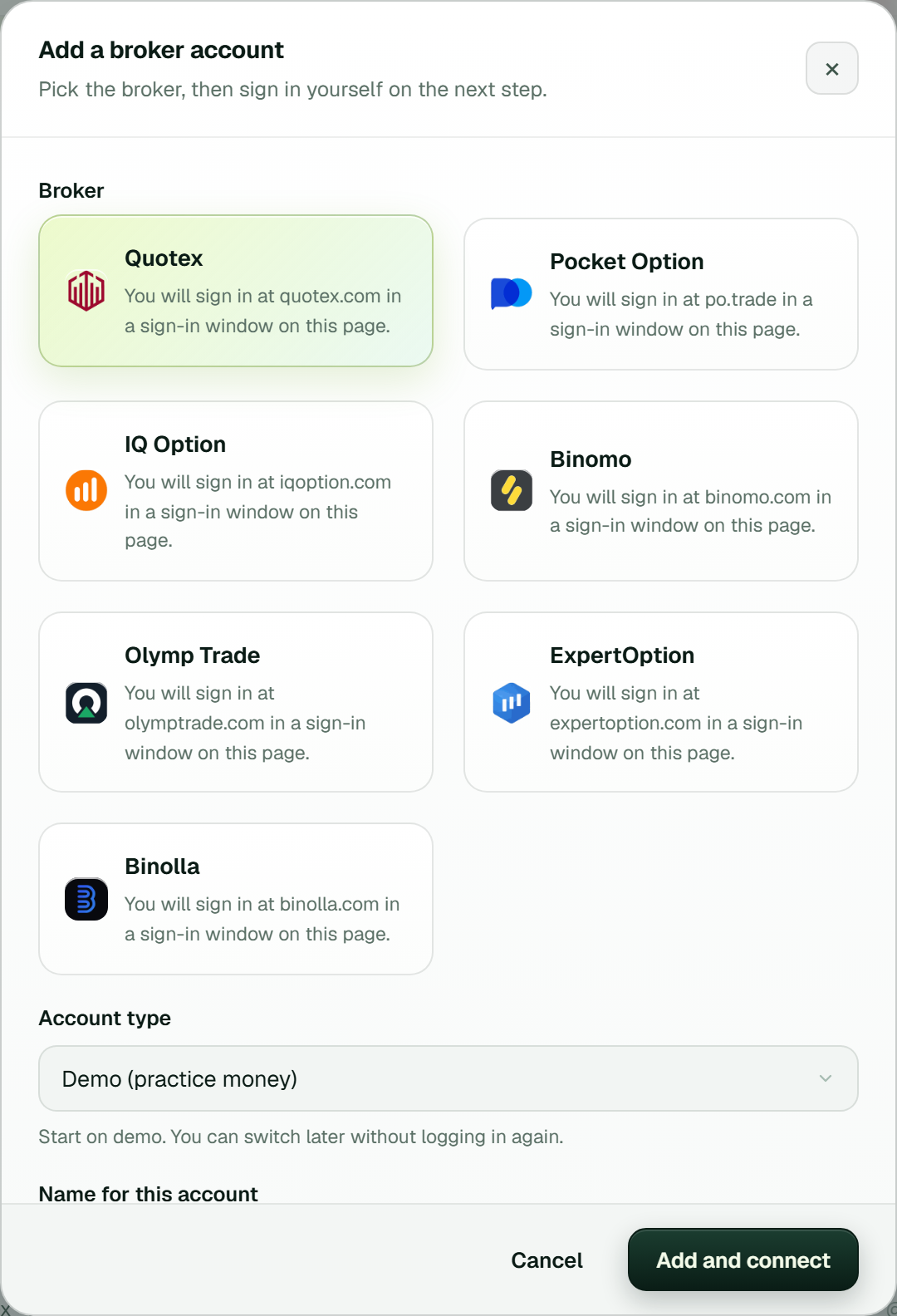 Add a broker account: Quotex picked, Demo (practice money) as the account type, then Add and connect.
Next, the Connect dialog opens with Quotex's own sign-in page inside it. Sign in there and pass any "verify you are human" check yourself. TPcopier never sees your password. It keeps only the encrypted session and a saved sign-in profile, so the next sign-in usually skips the check.
Once TPcopier has checked the saved login, the Login line on the card says it renews itself. From then on, TPcopier signs back in from that saved sign-in whenever Quotex ends a session. Quotex also takes demo or real on every order. So a later switch to real needs no new sign-in.
4. Set the stake and your limits
Open the account's Settings on its card and fill in Stake per trade. Zero means your default stake, which starts at 1. That matches Quotex's minimum on a dollar account. Other currencies have their own minimum, and TPcopier never sends a smaller stake, and the card warns you while it's too low.
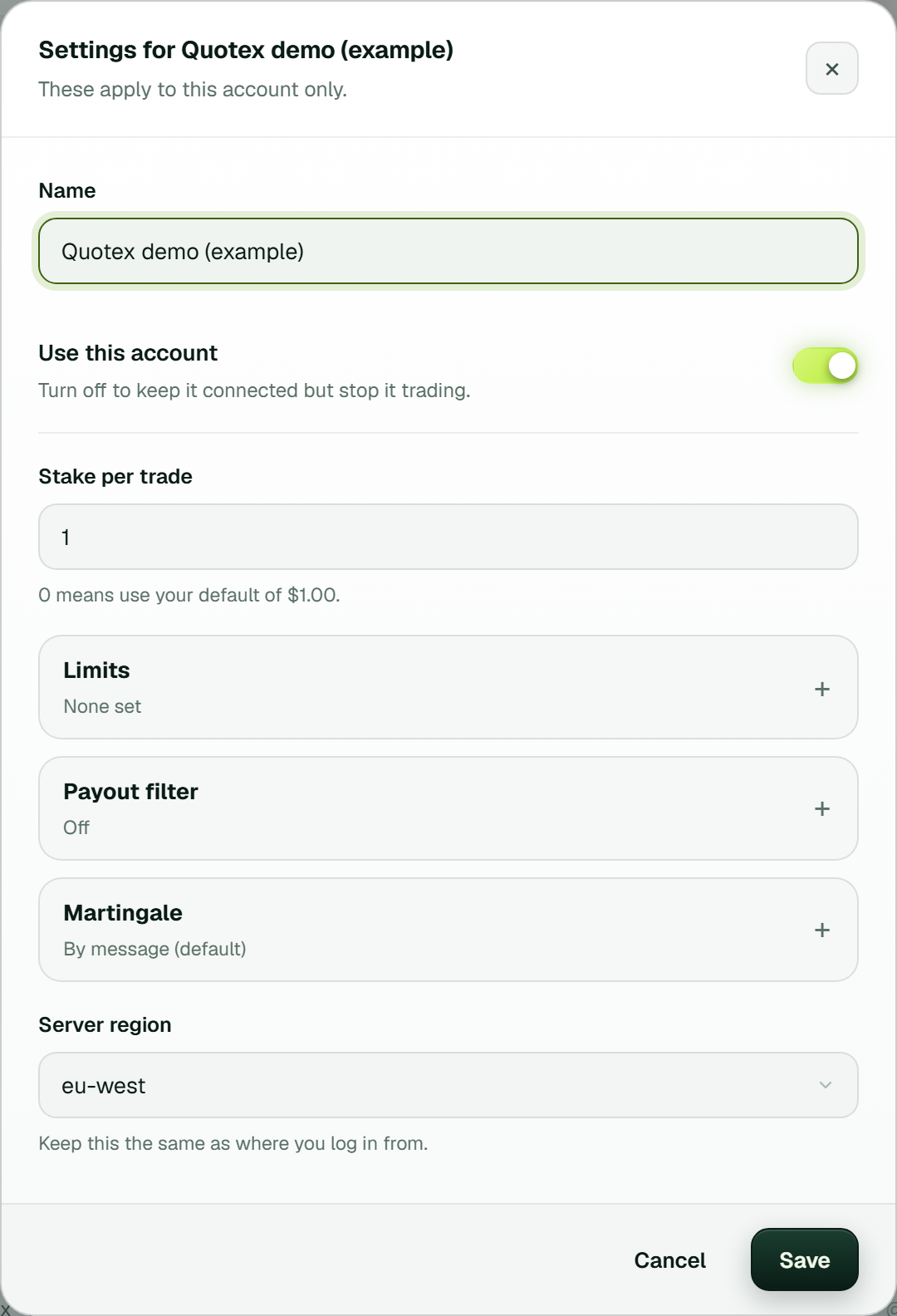 The account's own Settings: stake per trade, Limits, Payout filter, Martingale (By message) and the server region (example workspace).
The same window holds Limits (Never stake more than and the daily stop and target), the Payout filter and Martingale. The bridge's own settings, behind the gear at the top of its window, hold the rest: Minimum payout %, the expiry range and the volume limits. Demo or real, on the other hand, is set on the account's card.
Finally, press Test trade on the card. It lists the Quotex pairs open right now and what each pays. Then it places one order at the minimum stake on the demo balance.
5. Make a feed
Open the TradingView page and press New feed. Name it, then pick its Binary expiry when the alert names none. The default is 1 minute. The feed card then shows its Webhook URL with a Copy button.
 The TradingView page: a feed with its webhook URL and Copy button, the connected Quotex demo account, and The alert message with Action, Expiry and What each field means (example workspace).
6. Copy the alert message
Under The alert message, pick the Action and the Expiry. Then press Copy.
7. Create the alert in TradingView
In TradingView, create an alert with your indicator or strategy as the condition. If the indicator repaints, let it fire once per bar close. Next, paste the message into the Message box. Then tick Webhook URL under Notifications, paste the feed's address and save. TradingView's own guide to webhook alerts explains its side in more detail.
8. Link the feed to Quotex in the bridge's window
In the bridge's window, the feed sits on the left and your Quotex account on the right. Link the two; the Set-up list calls this step Link the feed to your account. Until you do, the feed stores alerts but trades nothing. Each link has its own gear button and shows Live once it runs.
 The bridge's window: one TradingView feed linked to a Quotex demo account and Live, with Add sender, Add receiver and the Set-up list (example workspace).
9. Check the first alert
Let the alert fire once. Alerts received on the TradingView page then lists it with its arrival time in UTC. Next to it sits a note: Placed on the binary accounts, or the reason it wasn't. History shows the order with its stake, speed, result and profit. History on the Quotex card also reads Quotex's own record and marks the trades TPcopier placed.
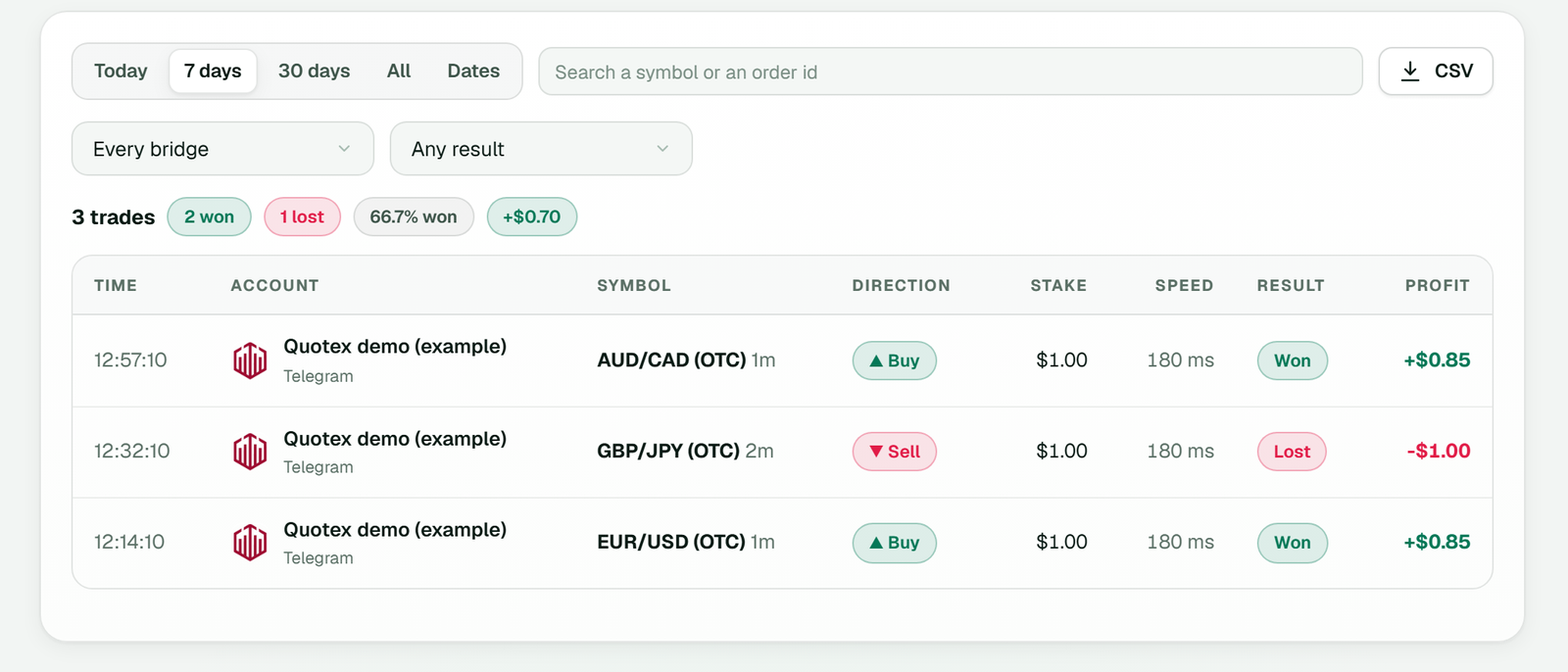 History: every Quotex order with its time, symbol, direction, stake, speed, result and profit (example workspace).
The TradingView to Quotex alert message
Here is an example for TradingView's Message box:
{"symbol":"{{ticker}}","type":"buy","expiry":"1m"}
TradingView fills {{ticker}} with the chart's symbol. TPcopier drops an exchange prefix such as FX: and reads USDT pairs as USD. So BINANCE:BTCUSDT trades BTC/USD, and GOLD becomes XAUUSD. The type field takes buy for a CALL or sell for a PUT. TPcopier turns away other words, such as "long". It also ignores stop loss and take profit fields.
A strategy can send its own direction with "type":"{{strategy.order.action}}". Watch its exits, though. A strategy's exit fill reports the opposite action, so closing a long arrives as sell. On Quotex, that sell becomes a brand-new PUT. If your strategy exits separately, use two condition alerts instead: one buy and one sell.
Plain-text alerts such as "BUY at 4317.56 | SL: 4307.56" name no pair. So they get the note CHART is not offered by your binary brokers. The binary message fields are explained in TradingView alerts to binary options.
Quotex OTC pairs and the real market
Quotex lists many pairs twice. There's the real market, such as EUR/USD, and Quotex's own OTC version, such as EUR/USD (OTC). The OTC version trades around the clock. Your TradingView chart, however, shows the real market. So TPcopier places the real-market pair and never swaps in OTC quietly.
Sometimes Quotex has only the OTC version, or the real market has shut for the weekend. In both cases TPcopier skips the alert and never places it later. To trade OTC on purpose, write it into the symbol, for example "symbol":"EURUSD-OTC". Your chart and your trade then follow different prices, so think twice.
Expiry: from the alert or from the feed
TPcopier uses the alert's expiry first. Without one, it takes the feed's expiry, which you can set from 5 seconds to 4 hours. The field accepts 30s, 1m, 5m and 1h, TradingView-style M5 or H1, and "5 min". A bare number counts as seconds, so "5" means a five-second trade. If TPcopier can't read the value, such as 1D, it falls back to the feed's expiry. So check the Expiry column after your first alert.
Settings also set a Shortest expiry allowed and a Longest expiry allowed. They start at 5 seconds and 4 hours, and TPcopier refuses anything outside them. The expiry travels to Quotex in seconds with the order. The trade opens when the alert arrives, not at the next candle, because entry timing is a Telegram setting.
When Quotex gets no trade from an alert
TPcopier never trades on a guess. Every alert either becomes an order or leaves its reason in the Note column under Alerts received:
| Note | Meaning | Fix |
|---|---|---|
... is not offered by your binary brokers |
The symbol matched no known pair | Use {{ticker}} or a plain pair name |
... is only offered as OTC ... |
Quotex has only the OTC version | Another pair, or name OTC |
That market is closed right now |
The pair is shut on Quotex | None; it isn't placed late |
Expiry ...s is outside your allowed range |
Outside your range in Settings | Change the alert or the range |
Payout ...% is below your minimum |
Under your Minimum payout % or the account's Payout filter | Lower it, or let it skip |
A close alert ... |
buyclose or sellclose | None; Quotex trades run to expiry |
Some alerts never reach that list. TPcopier turns away an alert sent to a wrong or replaced address, or one without symbol or type. A paused feed still answers "ok" but trades nothing.
Next, each Quotex account runs its own checks. TPcopier skips an account without a live connection. It also skips one that a daily stop, a daily target or a losing streak has paused. The same goes for a repeat: the same pair, direction and expiry within 60 seconds on that account. A volume limit in the bridge's settings, such as Most trades per hour, can stop it too. The free trial also caps signals per day.
Quotex can refuse an order as well, and TPcopier writes its answer on the trade. A stake below the minimum brings [min_amount], and TPcopier remembers the minimum it names. Above the maximum you get [max_amount]. A short balance brings a not-enough-balance error.
Sometimes Quotex stays silent for 15 seconds, and TPcopier then marks the trade failed. If the balance fell by the stake meanwhile, the error says Quotex most likely opened it. TPcopier then looks for it in Quotex's deal list and tracks it once it finds it.
Limits and honest caveats
- A copier copies. It copies losing runs too, so give the alert a proper run on demo first.
- Martingale follows the message. New binary accounts have Martingale set to By message, so a gale goes on only when the message gives one. If you switch an account to its own martingale in its Settings, a loss brings the same trade back at a bigger stake.
- Losing streaks pause the account. By default, four losses in a row stop it ("Pause an account after this many losses in a row" in the bridge's settings; 0 turns it off). It waits on the Binary brokers page until you press Resume.
- TradingView sets the timing. TPcopier acts when the alert arrives, so a late delivery means a late trade.
- One Quotex session. Signing in to Quotex elsewhere can end the session TPcopier uses. TPcopier then signs back in from the saved sign-in, or the card asks you to log in again.
The binary options risk management guide explains each limit.
What it costs
TradingView to binary brokers is its own bridge, billed monthly. Some accounts come included, and each extra account adds a monthly price. A pay-once Lifetime Software version also runs on your own PC or VPS. TradingView then needs a public address to reach your copy. The pricing page has the current numbers. All payments are final, so test on demo during the trial.
FAQ
Which TradingView plan do I need for Quotex alerts?
You need a plan that can send webhook alerts. TradingView offers webhooks on its paid plans. On the TPcopier side you install nothing, because the Quotex orders leave from its servers.
Why is my alert listed but not traded on Quotex?
Read the note beside it first, because it names the reason. If it says Placed on the binary accounts, look at the account instead. Check History for Quotex's refusal, the card for a pause and the bridge's window for a link that is not Live.
Can a TradingView alert trade Quotex OTC pairs?
Only when the alert names OTC itself, for example "EURUSD-OTC". Otherwise TPcopier places the real-market pair, because your chart shows that price.
What if someone gets my webhook address?
They could send alerts to that feed. Press New address on the feed, and the old address stops working at once. Then paste the new one into your TradingView alerts.
Start on a Quotex demo account
Start the free trial, connect a Quotex demo account and let one alert through. Keep real money off until the demo results convince you. The same feed can also trade Pocket Option, IQ Option, Binomo, Olymp Trade and ExpertOption. For more, see the TradingView copier and Quotex bot pages. If your calls come from a chat instead, read Telegram signals on Quotex, WhatsApp to Quotex or Discord to Quotex. If you build your own app, the Quotex automation API adds Quotex accounts and reads their trades from your code.
Legality: binary options are banned or restricted in many countries. In India, the RBI lists several binary platforms, including Quotex, as not authorised for forex trading. Check the law where you live before you use any broker. TPcopier is software only; it is not a broker and is not linked to Quotex.
Risk warning: binary options carry a high risk of losing money and are restricted in some countries. Nothing here is investment advice.