TradingView Webhook Alerts for Binary Options: 6 Easy Steps
TradingView webhook alerts can open a binary trade with no click from you at the broker. The catch is the message. A binary broker needs three facts from it: the pair, the direction and the expiry. Put those in the alert and TradingView to binary options becomes one webhook call, which TPcopier turns into a CALL or a PUT on every broker account you linked.
The screenshots here use Quotex, but the set-up works the same way on Pocket Option, IQ Option, Binomo, Olymp Trade, ExpertOption and Binolla. The same alert can also go to MetaTrader 4 or 5 in TPcopier's cloud, where it opens a normal market order instead.
What a broker needs from TradingView webhook alerts
Many TradingView scripts are written for forex and crypto charts, and they talk about price crossing a line. A binary broker doesn't care about lines. It wants to know what to trade, which way and for how long.
The alert has to carry those three, and TPcopier's message builder writes it for you:
{"symbol":"{{ticker}}","type":"buy","expiry":"1m"}
symbol: TradingView swaps{{ticker}}for the chart's symbol when the alert fires. TPcopier drops the exchange part, soFX:EURUSDtrades EUR/USD, and it reads USDT as USD, soBINANCE:BTCUSDTtrades BTC/USD.type:buyplaces a CALL andsellplaces a PUT, while words like "long" are turned away. Abuycloseorsellclosealert does nothing, because a binary trade runs to its expiry.expiry:30s,1m,5mor1h, or TradingView's ownM5andH1. A bare number counts as seconds, and with no expiry the feed's default applies.
Any stop loss or take profit in the message is ignored, since a binary trade has neither. If you want the coin itself traded on Binance, that's a separate Windows app: TradingView to Binance futures.
Where strategies go wrong
Pine strategies are where a binary set-up most often trips. The builder's default type is {{strategy.order.action}}, and with it a strategy's exit fill arrives as the opposite action. On a binary account that exit opens a fresh trade the other way. If your strategy exits on its own, send separate buy and sell alerts from conditions instead.
Plain text has its own problem. Some indicators can only send a line like "BUY at 4317.56". That line names no pair, so no binary broker can take it, and the alert is skipped. Send the JSON message.
TradingView to binary options in 6 steps
Check your TradingView plan first, because TradingView webhook alerts are a paid feature. The plan table on TradingView's pricing page lists webhook notifications on Essential and every plan above it, but not on the free Basic plan. TradingView's webhook alerts help page adds two rules: two-factor authentication must be on, and the server that receives the alert gets three seconds to answer. TPcopier stores the alert and answers at once, then places the orders after that.
1. Make the bridge
Start the free trial, open Bridge and press Make a bridge. Pick TradingView as the sender and a binary broker as the receiver, then press Open the bridge.
 Make a bridge: TradingView ("Your alerts") as the sender and Quotex as the receiver. MetaTrader 5 and 4 sit in the same window, both marked "in the cloud".
2. Add a demo broker account
In the bridge's window, press Add receiver. Pick the broker, keep the account on Demo (practice money), give it a name and press Add and connect. The broker's own sign-in page then opens inside TPcopier, and you sign in yourself, "are you human" check included. TPcopier never asks for your broker password.
3. Set the stake and the limits
Every account card has its own Settings. Set Stake per trade first and check it against the broker's minimum, because the broker refuses a smaller stake. Under Limits you get a stake cap, a stop for the day after losing and a stop for the day after making. The payout filter ("Only take good payouts") stays off until you switch it on.
A new account has martingale set to By message. A TradingView alert never names a gale, so each alert stays one trade unless you give that account its own martingale.
The bridge has settings too, behind the gear in its window. There you set the shortest and longest expiry allowed, a minimum payout that starts at 70%, trades per hour and per day, and "Pause an account after this many losses in a row", which starts at 4 (0 turns it off). A paused account shows a Resume button on the Binary brokers page.
4. Make a feed
Open the TradingView page and press New feed. Name it and pick Binary expiry when the alert names none: 1 minute unless you change it, and anything from 5 seconds to 4 hours. The feed's card then shows its Webhook URL, https://tpcopier.com/tv/ plus a short code, with a Copy button.
 The TradingView page: a feed with binary expiry 1m and its Webhook URL, a Quotex demo account connected, then The alert message with Action, Expiry and "What each field means" (example workspace).
5. Build the message and create the alert
Under The alert message, pick the Action (from a strategy, Buy (CALL) or Sell (PUT)) and the Expiry (the feed's own, or 30 seconds up to 1 hour). Then press Copy.
In TradingView, create the alert on your indicator or strategy and paste the message into its Message box. Next, tick Webhook URL under Notifications and paste the feed's address. If your indicator repaints, let it fire once per bar close.
6. Link the feed and watch the first alert
Back in the bridge's window, link the feed to each binary account it should trade. A feed with no link stores its alerts and trades nothing. Then let one alert fire.
 The bridge's window: the TradingView feed on the left, a connected Quotex demo account on the right, the link Live with no trades yet, and the Set-up list below (example workspace).
Within a second the alert shows under Alerts received on the TradingView page. Its Note reads "Placed on the binary accounts", or gives the reason it wasn't. The first trade then appears in Live trades on the Dashboard and in History.
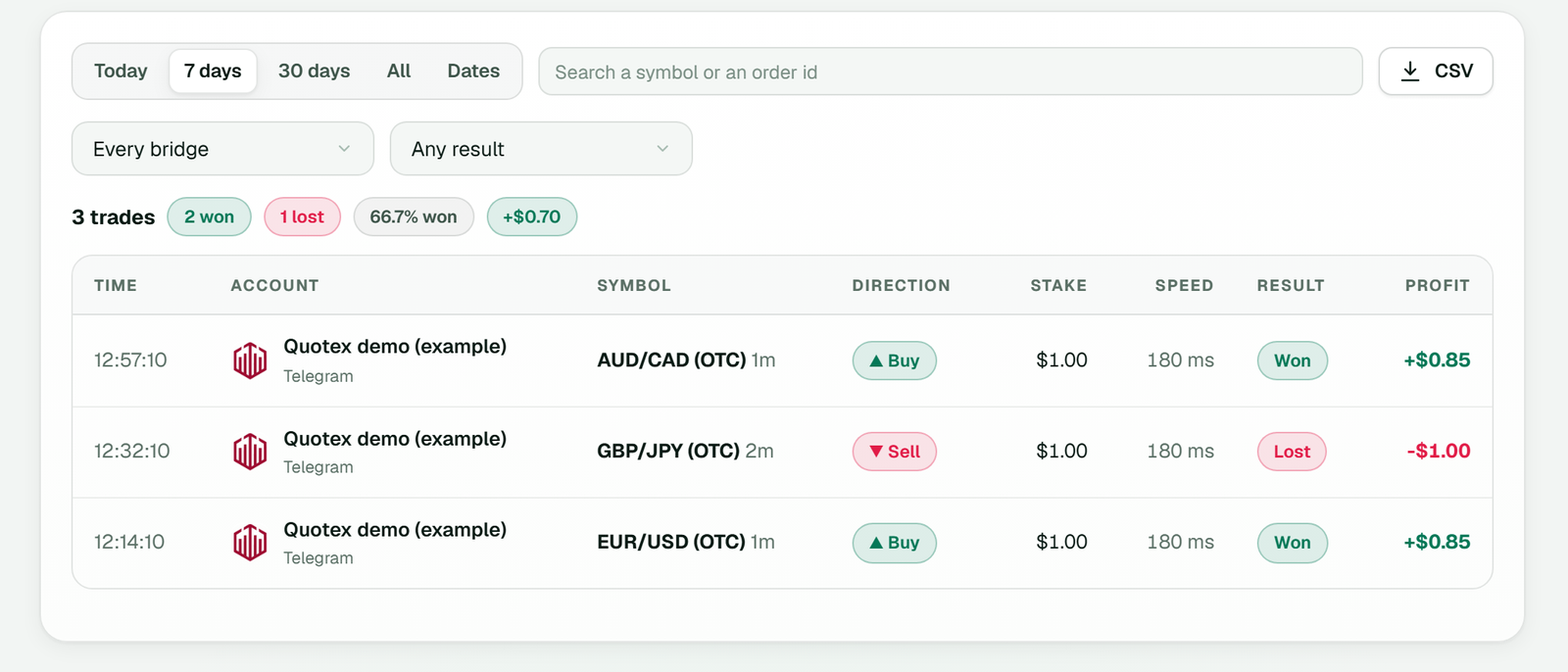 History: each trade with its account, symbol and expiry, direction, stake, speed, result and profit. These example rows came from a Telegram bridge, and the filter at the top shows one bridge at a time (example workspace, not real results).
OTC pairs and market hours
Your chart shows the real market, and that's the pair TPcopier trades. It never swaps in a broker's OTC twin by itself, because an OTC price can drift away from the chart that fired the alert. When the real market is shut, at the weekend for example, the alert is skipped and not placed later. The same happens when a broker lists a pair only as OTC.
Want an OTC pair on purpose? Write it into the symbol, such as "symbol":"EURUSD-OTC".
Timing is simple. The order goes out as the alert lands and doesn't wait for the next candle. If TradingView delivers late, the trade is late too.
Why an alert trades nothing on a binary account
Start with the Note under Alerts received. TPcopier writes a reason there instead of guessing:
- your binary brokers don't offer that symbol;
- the broker offers only the OTC version of it;
- that market is closed right now;
- the expiry is outside your allowed range;
- the payout is below your minimum;
- it was a close alert.
If the Note says placed, look further along. Each account still runs its own checks: one that isn't connected is passed over, and so is one paused by its daily stop, its daily target or a losing run.
Run the first alerts on one demo broker account and read each Note before real money is involved. The red Stop Trading button in the top bar halts all of it, and the free trial stops at 10 signals a day. A broker can also refuse an order, for example a stake under its minimum, and History shows that answer on the trade.
The same feed on MT4 and MT5
The feed you made for binary can also trade MetaTrader. Make a TradingView to MetaTrader 5 (or 4) bridge and add your MetaTrader account: platform, broker, account number and trading password. TPcopier then starts the terminal on its own server with the TPcopier EA inside, so your PC can stay off. The password is locked with the cloud server's own key the moment you press Add it, and the website can never read it back.
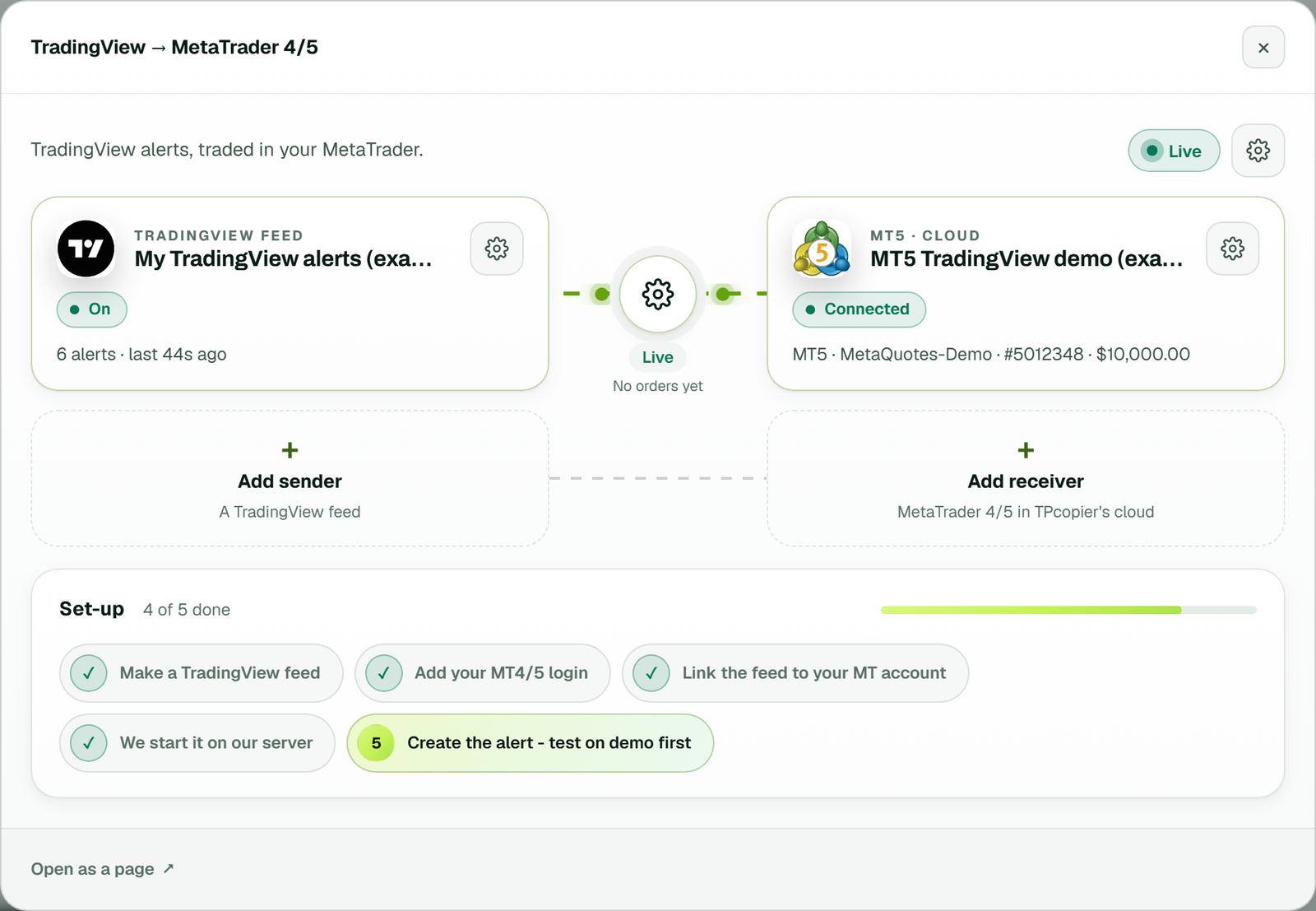 TradingView to MetaTrader 4/5: the feed on the left, an MT5 cloud account on MetaQuotes-Demo on the right, and a Set-up list whose last step is to create the alert and test on demo first (example workspace).
What changes in the message
The builder changes for MetaTrader. Expiry goes, and you get these instead:
- Action: from a strategy, Buy, Sell, Close buys or Close sells.
- Alert key, such as
signal@1. It keeps strategies apart, so a close takes only its own key's trades. - Stop loss and Take profit in points, both optional. "What each field means" says prices work best, because points follow the EA's pip table, which runs wide on 3-digit gold and indices.
- Send the price, which stays on "No (market orders)" because cloud accounts trade at market.
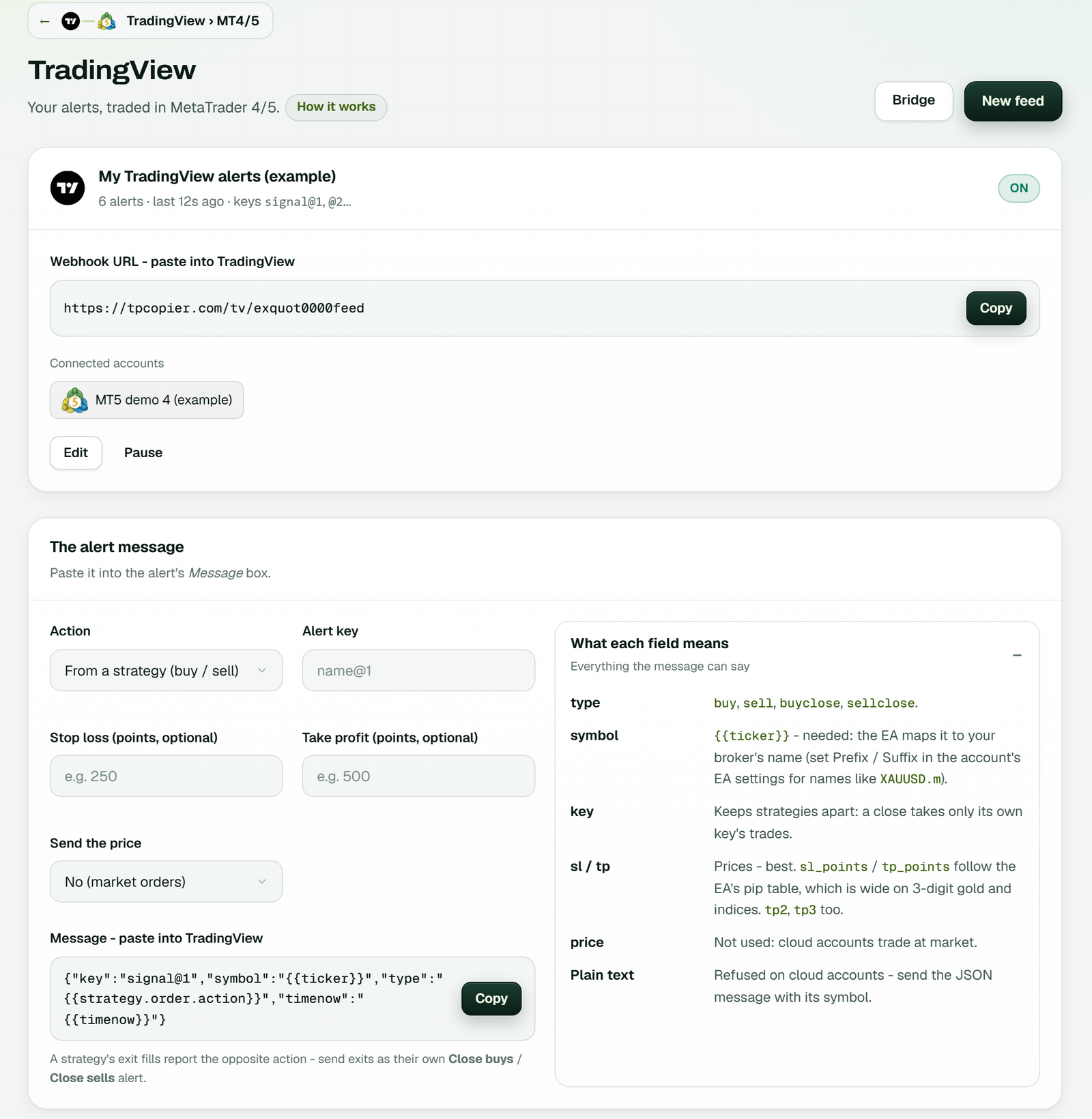 The TradingView page for MetaTrader: the same Webhook URL layout with an MT5 demo connected, and a builder with Action, Alert key, Stop loss and Take profit in points, and Send the price (example workspace).
Three things work differently from binary. A new buy or sell first closes the other side that the same key opened on that symbol, so a strategy's reversal never leaves a hedge. Plain text is refused, since one cloud chart trades every symbol and the line names none.
The copied message also carries "timenow":"{{timenow}}". That lets TPcopier drop an alert that arrives later than your "Ignore messages older than" setting, which is 120 seconds unless you change it.
The TradingView to MT4/MT5 cloud page covers that side in depth. Coming from PineConnector? The PineConnector alternative page lists the differences.
Broker by broker
Each broker has its own quirks, so each has its own guide:
- Quotex: TradingView to Quotex covers the minimum stake per currency and OTC names.
- Pocket Option keeps demo and real as separate sessions on separate servers (TradingView to Pocket Option).
- IQ Option trades 1 to 5 minutes as turbo options, and longer expiries settle on quarter hours (TradingView to IQ Option).
- Binomo expiries land on whole minutes, and each asset keeps a weekly schedule (TradingView to Binomo).
- Olymp Trade and ExpertOption have guides too: TradingView to Olymp Trade and TradingView to ExpertOption.
Binolla has no guide yet, but the Binolla signal copier page sums it up. Its demo is tested in full, while real-account orders are not yet checked by TPcopier, so stay on demo there. For every source and broker in one place, see the binary options signal copier page.
What it costs
A TradingView to binary brokers bridge costs $50 a month with one account and $20 for each one more. TradingView to MT4/5 starts at $40 a month for 2 accounts, with cloud MetaTrader included. The pricing page has every tier. The trial gives you 2 days on one bridge, up to 10 signals a day, and needs no card.
Binary options are restricted in many countries: the UK's FCA, for example, has barred firms from selling them to retail consumers since 2 April 2019 (the statement is listed under Sources). Check your local law first. TPcopier is software, not a broker and not trading advice, and it has no tie to any broker named here. Trading binary options, forex and CFDs can lose you money.
Sources
- TradingView, Pricing and plan features (read 4 Nov 2026)
- TradingView, How to configure webhook alerts (read 4 Nov 2026)
- Financial Conduct Authority, FCA confirms permanent ban on the sale of binary options to retail consumers, 29 March 2019 (read 4 Nov 2026)
FAQ
Can I use TradingView for binary options?
As the signal source, yes. The chart and its Pine script stay on TradingView and only the webhook message travels on, so the broker account settles each trade at the expiry written into that message.
Can one TradingView alert trade several brokers at once?
Yes. One feed can link to accounts at any of the seven brokers, Quotex and Pocket Option side by side for example, and the order goes to each of them from the same alert.
Can I close a binary trade early from TradingView?
No. A binary trade has no early exit through TPcopier, so pick the expiry in the alert to match how long the idea should run.