How to set up the
TradingView to Zerodha and Angel One Copier
This guide shows how to install and set up the TradingView to Zerodha and Angel One Copier. Your TradingView alerts placed on your Indian broker from your own PC - options and stocks, from the static IP your broker knows. JSON alerts, no AI to misread them.
What you need for the TradingView to Zerodha and Angel One Copier
- Windows 10 or 11 (64-bit) on a PC or VPS with a static IP address
- Your broker's API keys - and that static IP registered with your broker (SEBI's rule since April 2026)
- A TradingView plan that sends webhook alerts
How to set up the TradingView to Zerodha and Angel One Copier, step by step
Get your key
Sign up free at tpcopier.com, open Software and press Start free demo on the Indian TvCopier card - a demo key for a few days, nothing to pay. Buy it later on the same card: the demo key itself becomes lifetime, so you never type a new one.
Download the app
On the same card press Download. Keep the .exe in a folder of its own on the Windows PC or VPS it will run on, for example C:\TPcopier.
Start it
Double-click the .exe. If Windows says "Windows protected your PC", press More info, then Run anyway - it is TPcopier's own build, and tpcopier.com checks every copy's fingerprint when it is activated. If your antivirus holds it back, allow the file.
Activate your key
Paste the key and press Activate. One key works on one computer; to move it, write to us.
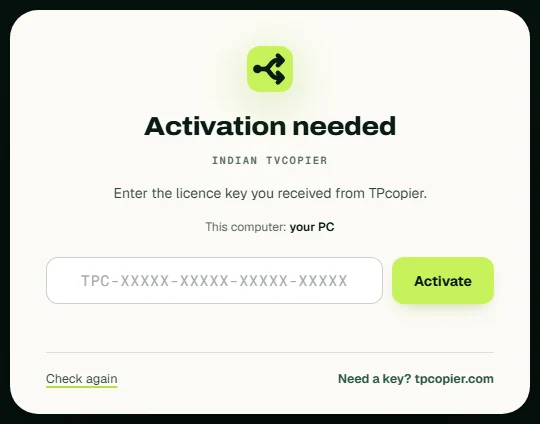
Activate your key - the app's own screen. Connect your broker account
Open Accounts, press Connect a broker and pick yours. Paste its API keys, choose the market it trades - equity, options, futures, commodity or currency - and Real or Paper trading, then press Connect. Zerodha logs in with Kite each day.
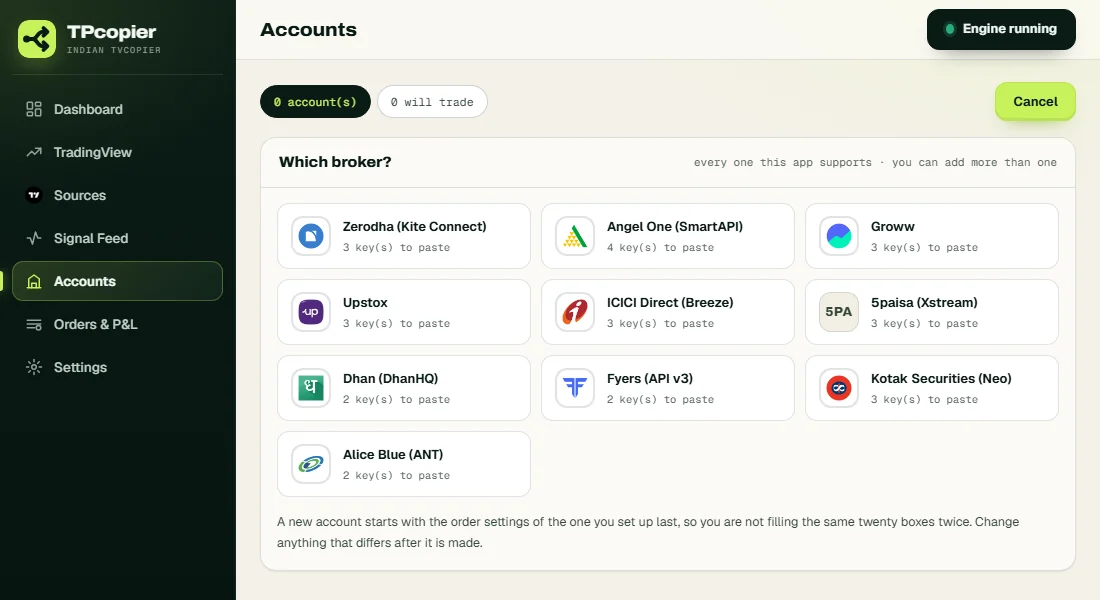
Connect your broker account - the app's own screen. Register your static IP
Register this computer's static IP with your broker - SEBI requires orders from a registered IP.
Copy your webhook address
In Settings, Webhook: copy your address. TradingView sends it straight to this computer on port 80, so allow port 80 in Windows Firewall (on a VPS, in the provider's firewall too). A home line that shares one address with other customers can't be reached: use a VPS.
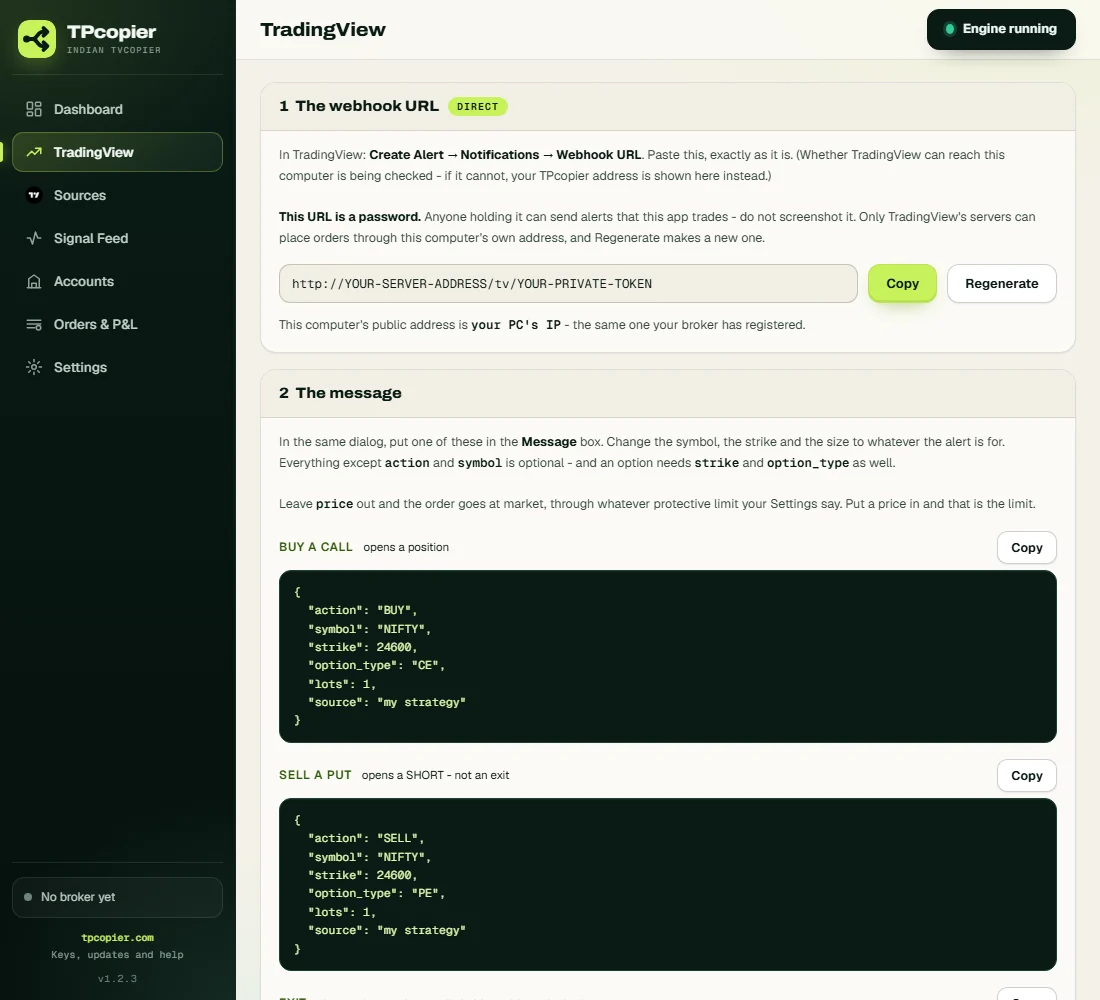
Copy your webhook address - the app's own screen. Create the alert in TradingView
Paste the address as the alert's Webhook URL and the JSON message the app writes for you (strike, lots and the rest).
Set the order size
Once it is connected, the account's Settings window opens: a tab for each market it trades. Fixed shares or lots, or Auto from the rupees at risk - Rs 500 with price 1050 and SL 1040 is 50 shares. The All orders tab holds the stop loss and the daily limits.
Switch the engine on
Switch it on - the dashboard shows each alert, its order and what the broker said.
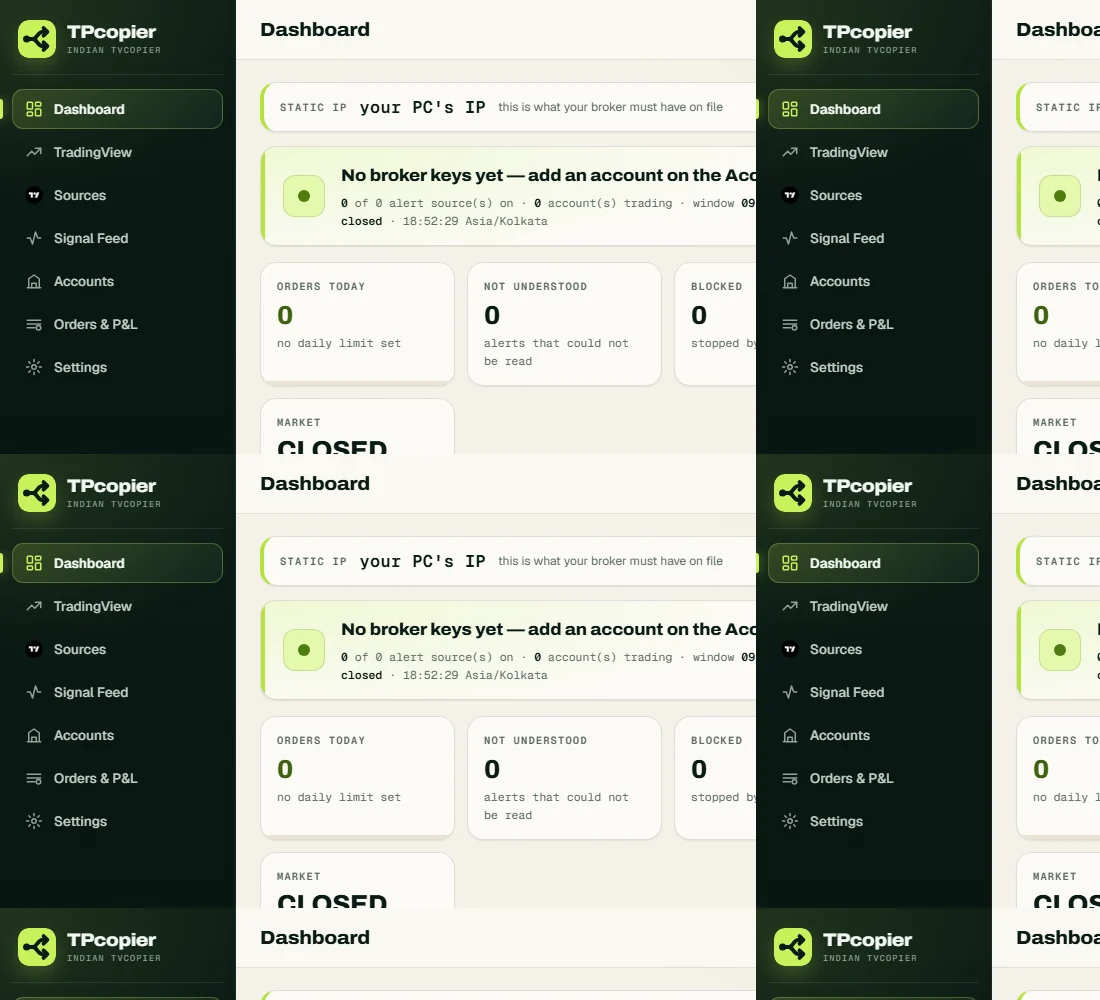
Switch the engine on - the app's own screen.
TradingView to Zerodha and Angel One Copier: questions and answers
Is there a free demo?
Yes - Start free demo on the app's card gives you a key for a few days. When you buy, that same key becomes lifetime.
Can it run on a VPS?
Yes - any Windows 10, 11 or Windows Server VPS. It trades while that computer is on.
Can I move my key to another computer?
One key works on one computer. To move it, write to us and we free it.